Historically, QuickBooks Online (QBO) allowed only one Primary Admin per QuickBooks organization. That single user had access to every part of the QBO account, including connected applications such as G-Accon.
QBO has since introduced the "Add Accountant User" feature, enabling accounting firms to access their clients' company financial data. This feature allows accountants to review books, make corrections, and collaborate on any issues. Accountant users also gain additional privileges, including the ability to undo entire reconciliations, reclassify transactions, write off invoices, and leverage third-party tools such as G-Accon.
For step-by-step guidance, see Intuit's official instructions on how to add accountant users in QuickBooks Online.
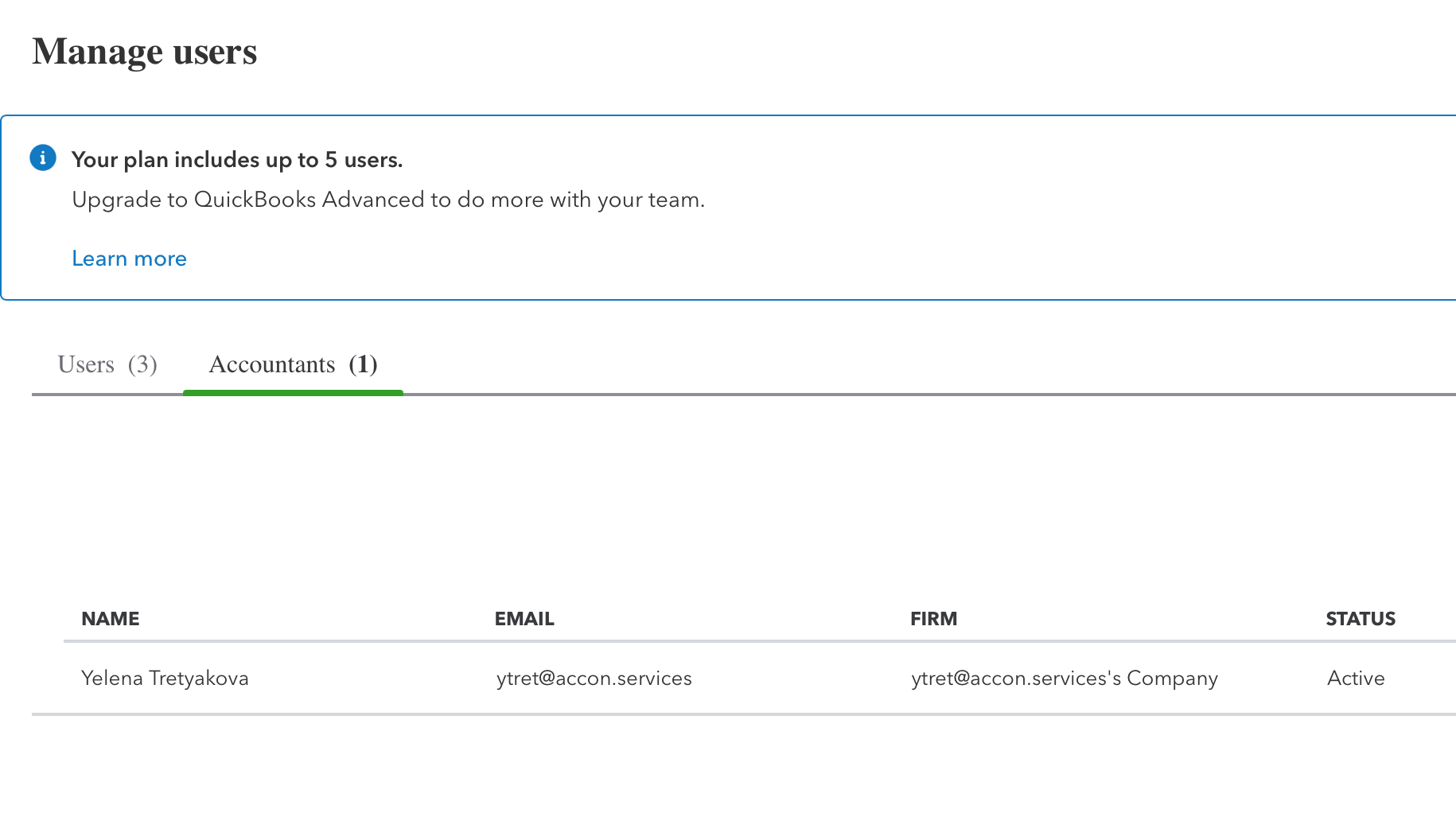
Once a new accountant user or firm is added to the QBO file, they can install the G-Accon for QuickBooks add-on and assist the client with all financial matters.
It's worth clarifying how access works when connecting G-Accon to a QuickBooks Online (QBO) file, because the rules are determined by how Intuit has designed the QBO API.
By design, only one user — specifically a Primary Admin or Company Admin — can establish the connection between G-Accon and a client's QBO file. Whoever sets up that connection becomes its owner and is responsible for granting access to any additional team members who need to work with the same data. Those team members then access the QBO file through the primary connection rather than creating their own.
For example, if a Company Admin manages a particular client, that admin would establish the connection in G-Accon and then add any additional users under their connection. The "Add Standard User" functionality in G-Accon is provided specifically as a workaround to enable multiple team members to access the same QBO file through that single primary connection.
This limitation comes directly from Intuit's architecture. According to Intuit, only a Company Admin, Primary Admin, or Accounting Firm user can authorize an API connection — non-admin users are not able to grant app access themselves. These are administrative constraints built into the QBO API, not something G-Accon can change on our end.
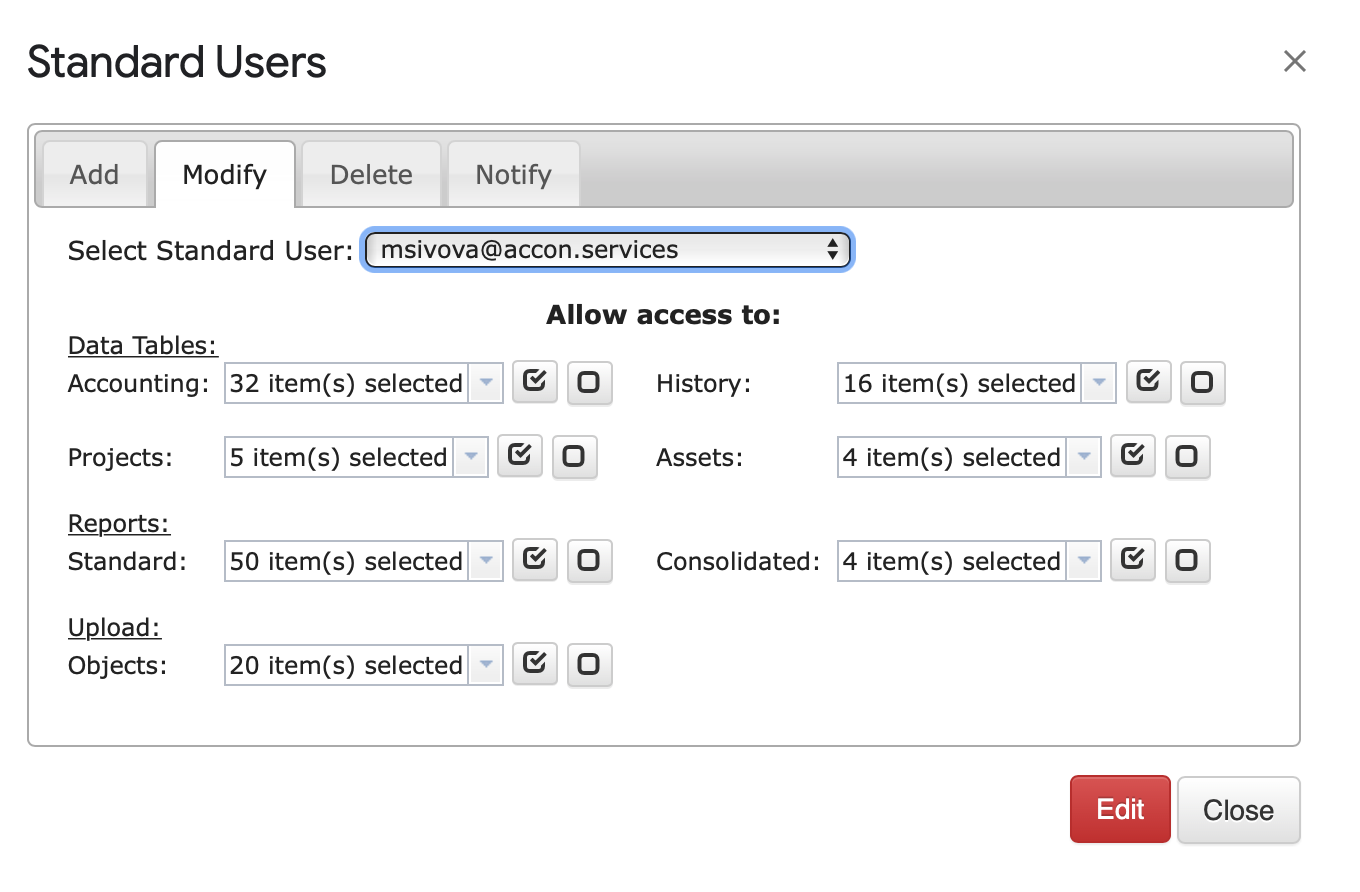
G-Accon also provides an "Add Standard User" feature that allows multiple team members to collaborate on the same QBO file. The QBO Primary Admin can grant either "Full Access" or "Read Only" privileges when adding a standard user, giving the team simultaneous access to QBO company files.

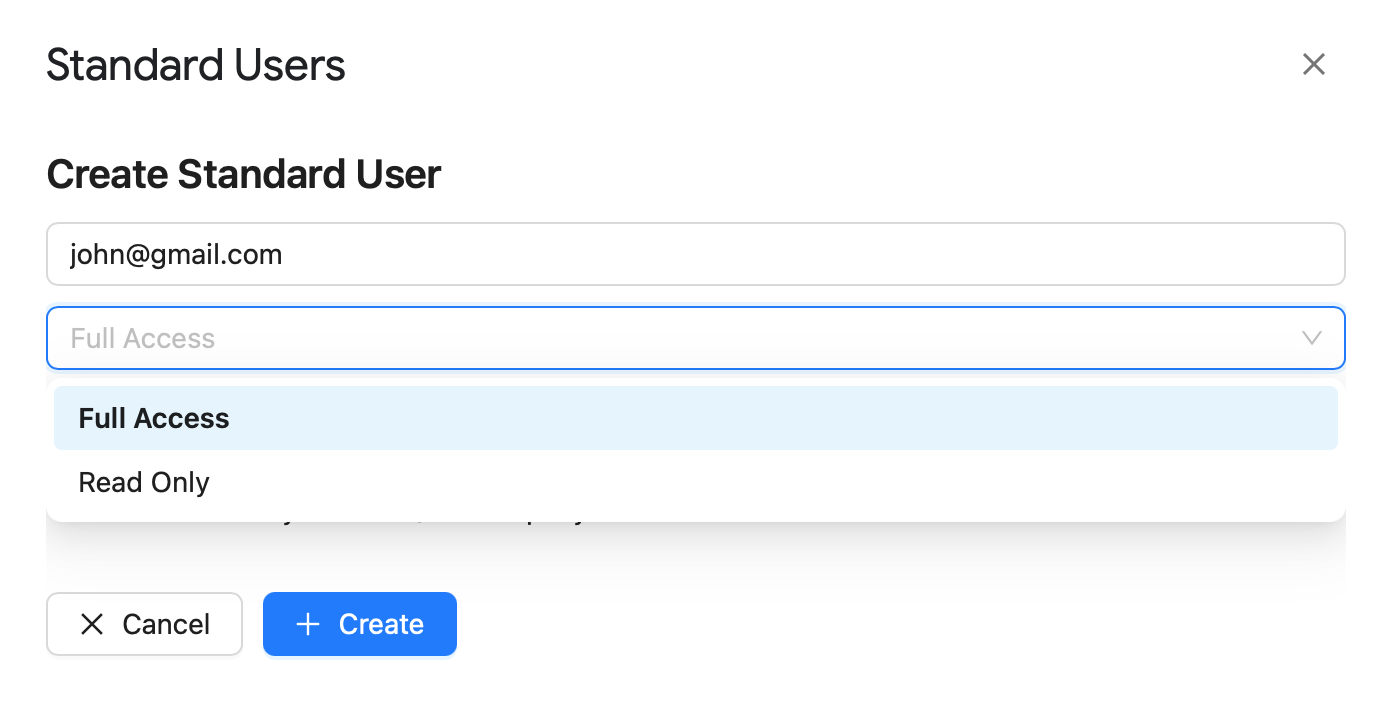
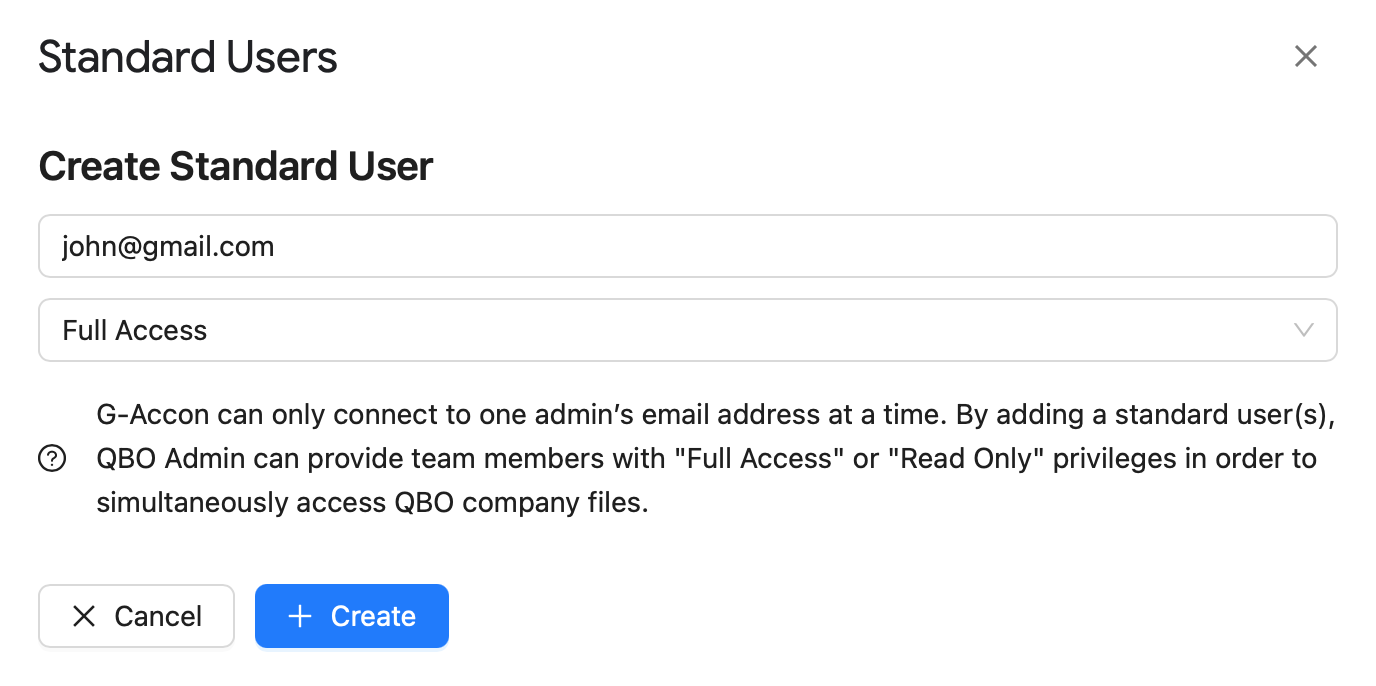
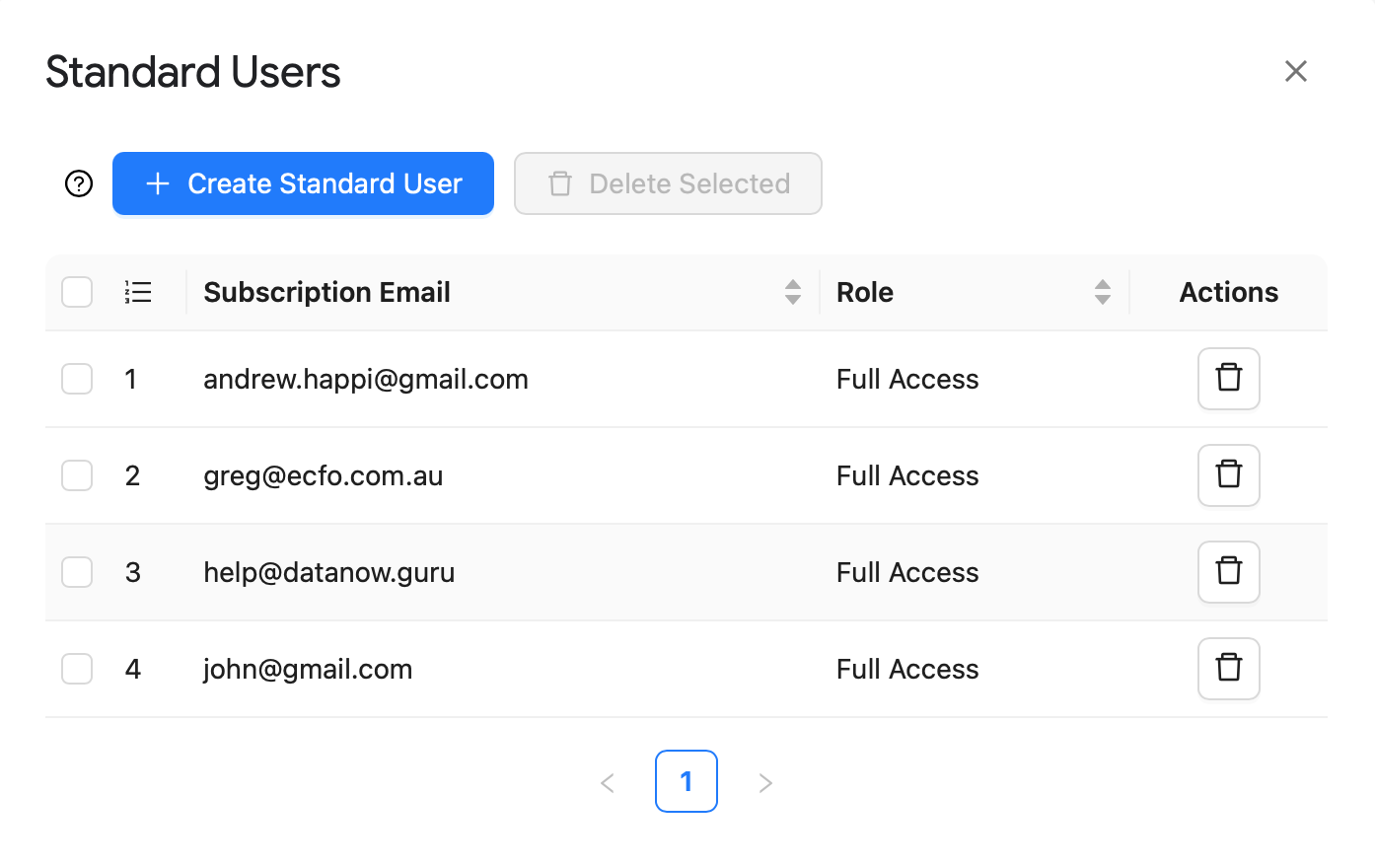
You can access "Add/Manage Standard User" from the G-Accon for Xero menu.
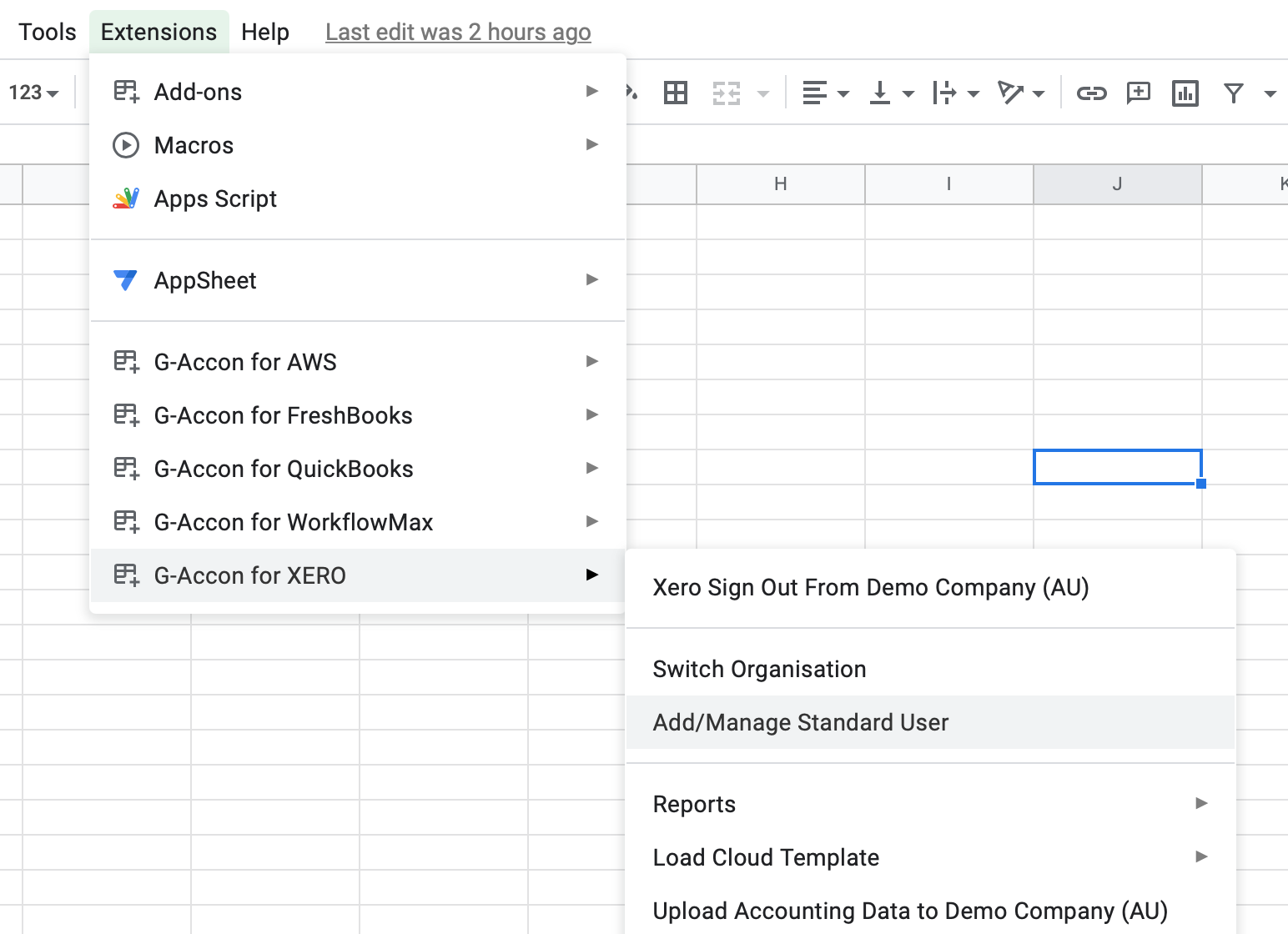
From the Add tab, you can grant a subscribed team member access to the same client file and assign the specific report privileges they need.
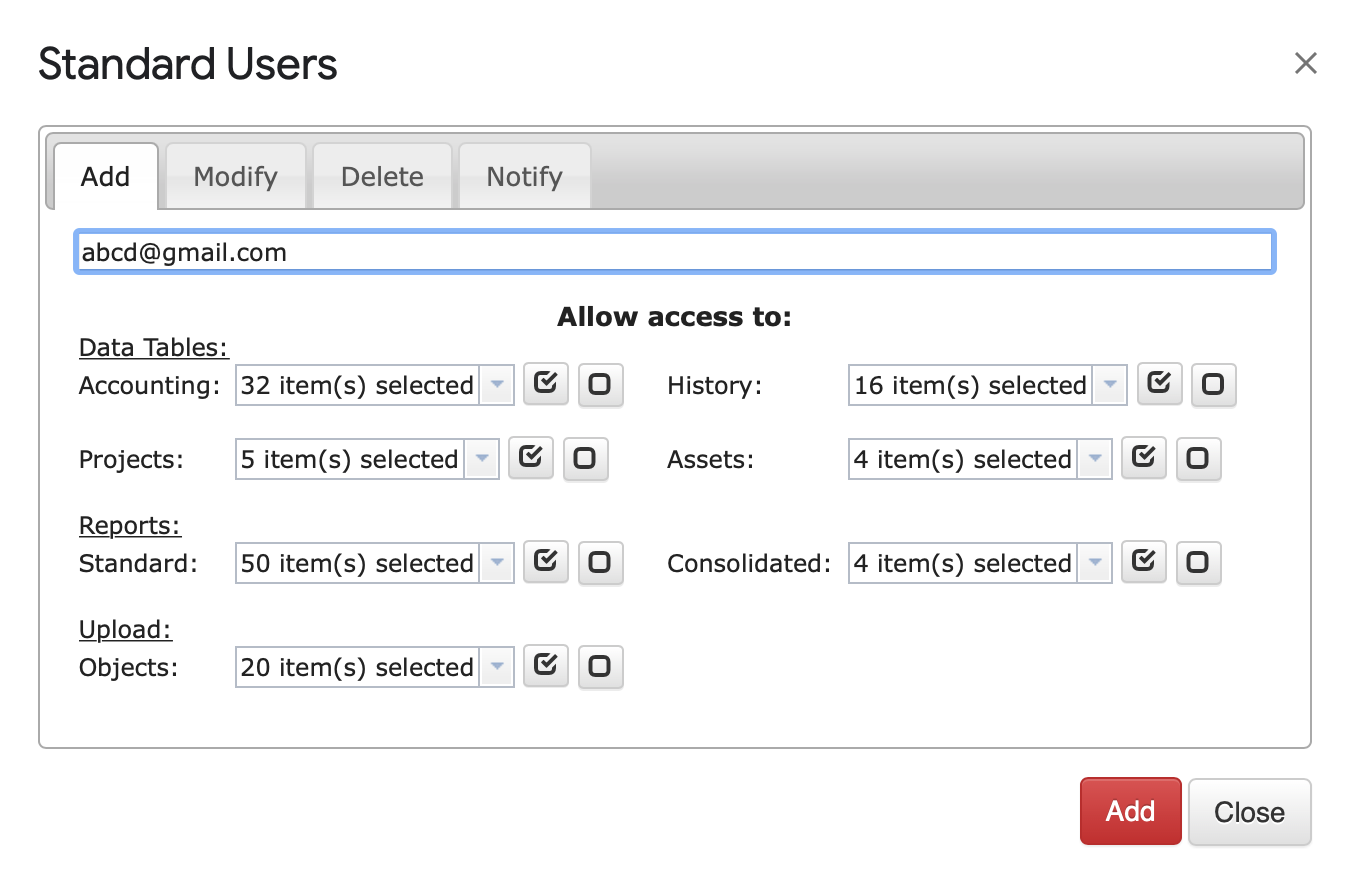
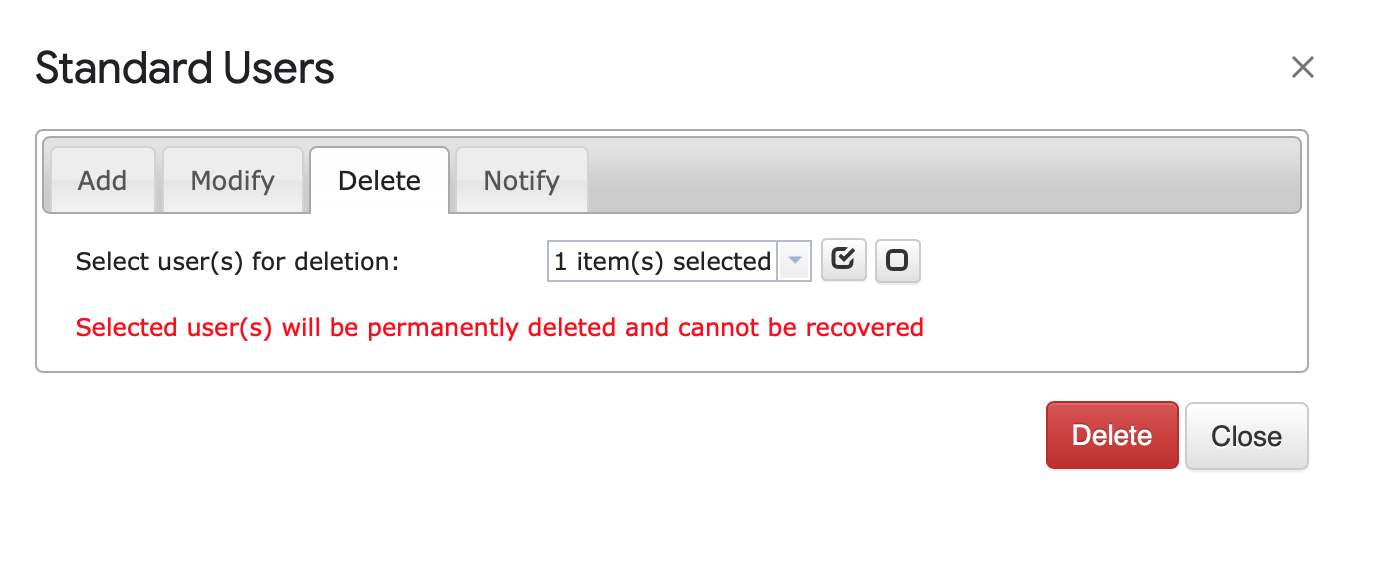
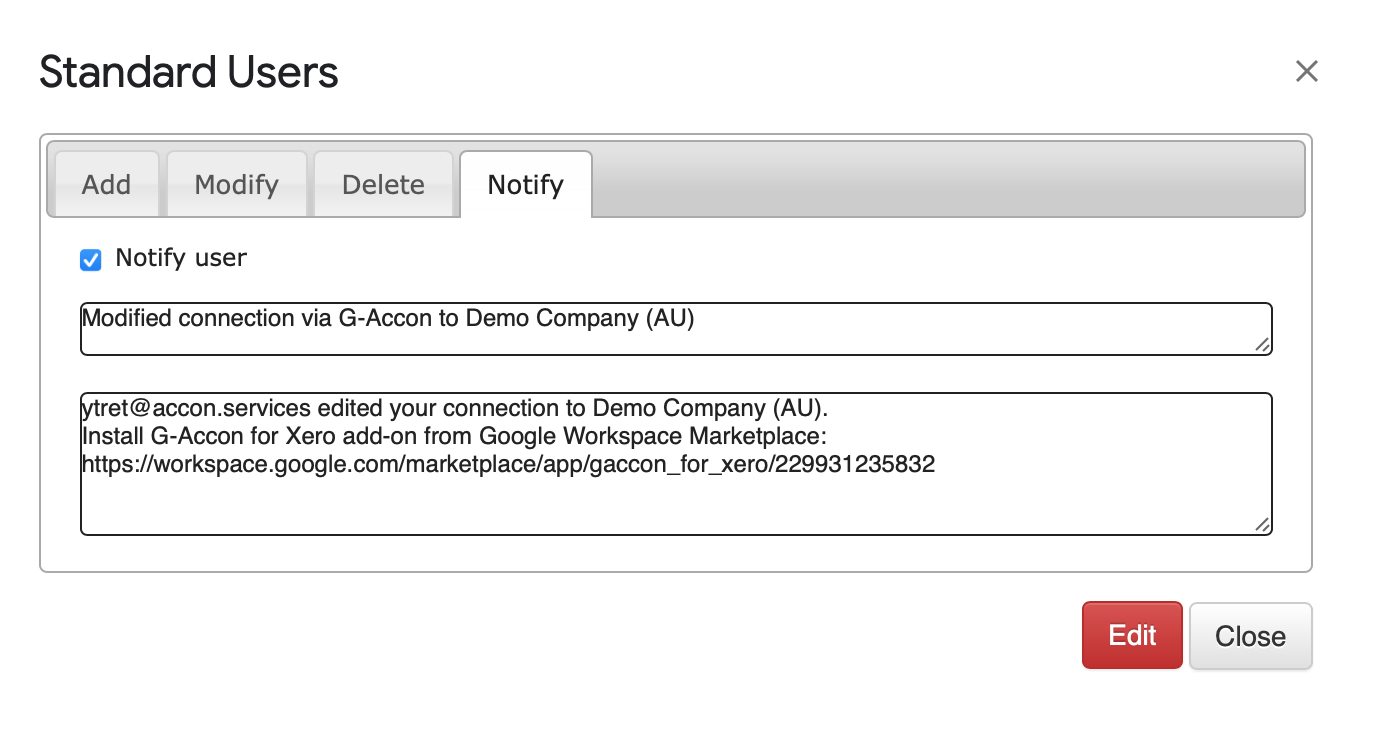
Additional functionality includes modifying user privileges, deleting users, and sending notifications: