Your Complete Guide to G-Accon

G-Accon Help Center

Explore step-by-step guides, troubleshooting tips, and best practices to make the most of G-Accon. Whether you're setting up integrations, automating reports, or optimizing workflows, our help center has everything you need to succeed.
Wiki Menu

Template Settings

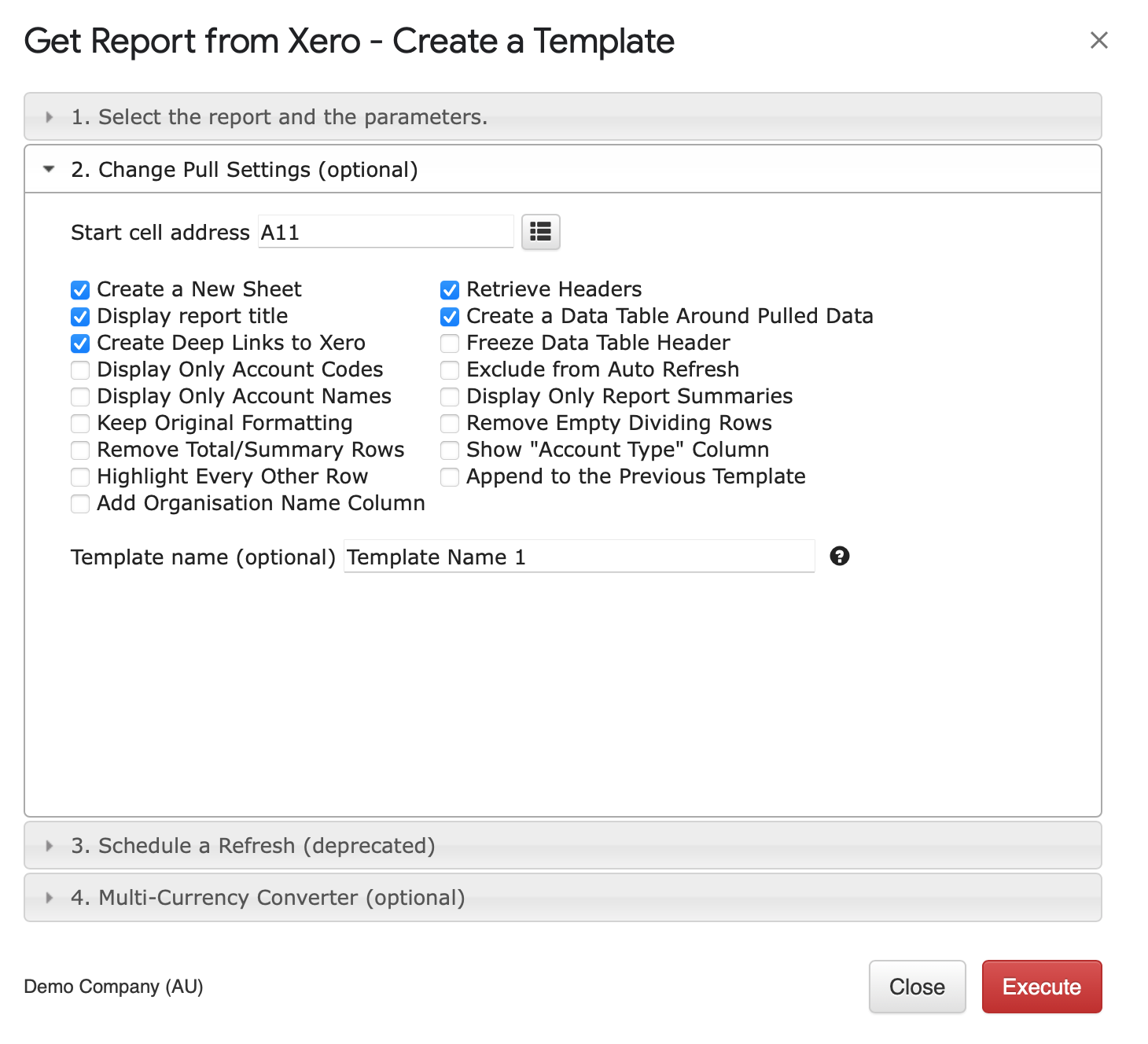
Change Pull Settings control how your report or data extract looks in Google Sheets: where it goes, which columns and rows appear, and how it's formatted.

Where to find them

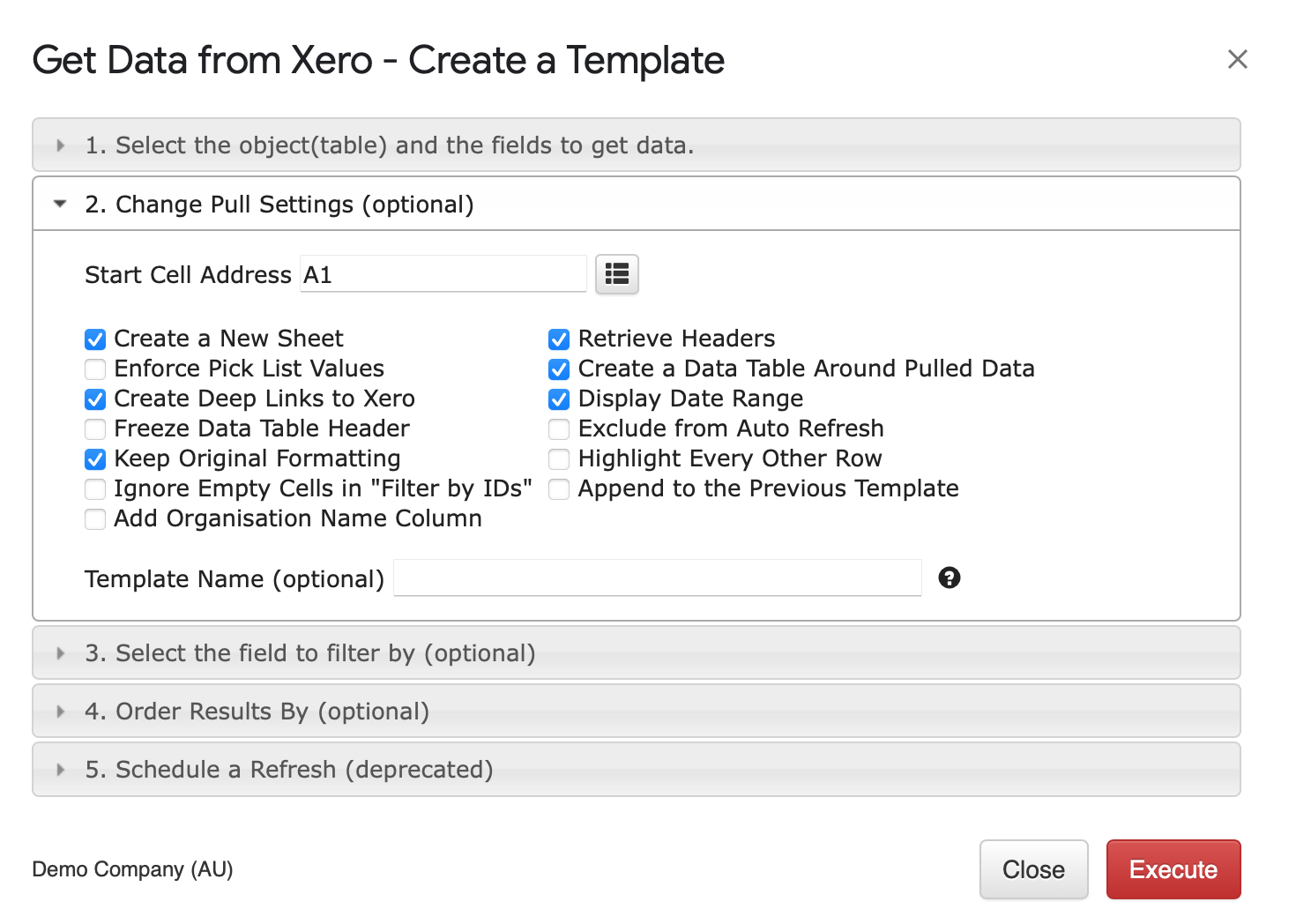
When you create or edit a template, open 2. Change Pull Settings (optional) and tick the boxes you need.

Start cell address: the cell where your data starts.Template name (optional): a name to find the template later.
Get Report from Xero, Create a Template window with the Change Pull Settings section open
No settings match your search.

Settings for reports

17 settings

Where the data goes

Create a New SheetPuts the report or data extract in a separate, new sheet.
Append to the Previous TemplateAppends this data to the previous template. Watch the demo video
Exclude from Auto RefreshLeaves this template out of the automatic refresh process.

Titles, headers and columns

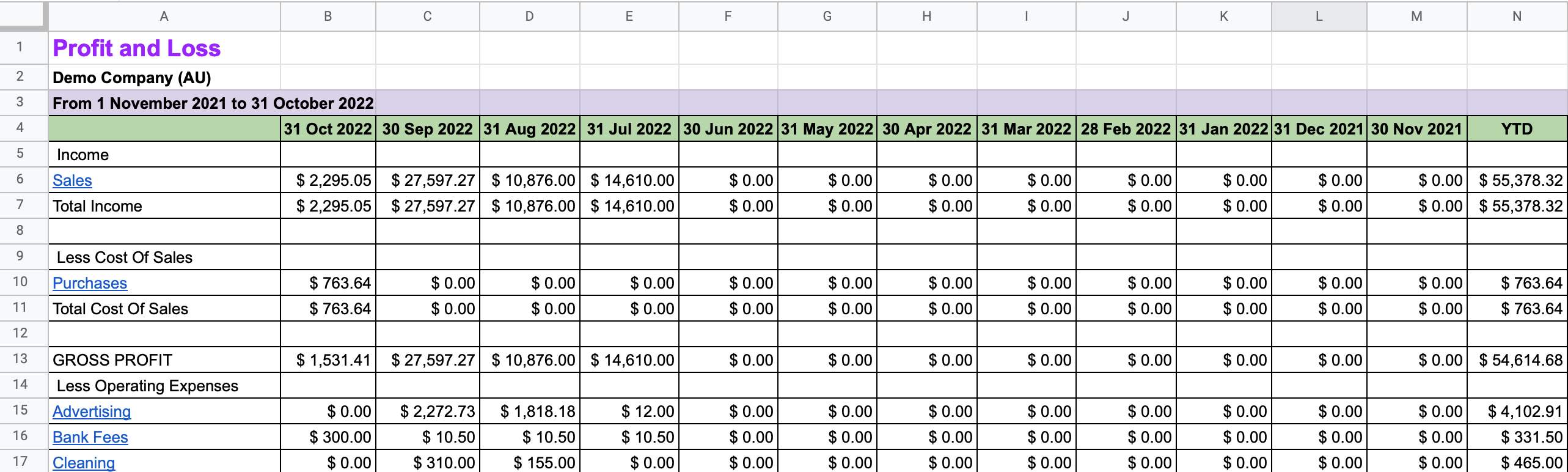
Display Report TitleShows the report title above your data.Example
Report with its title displayed above the data
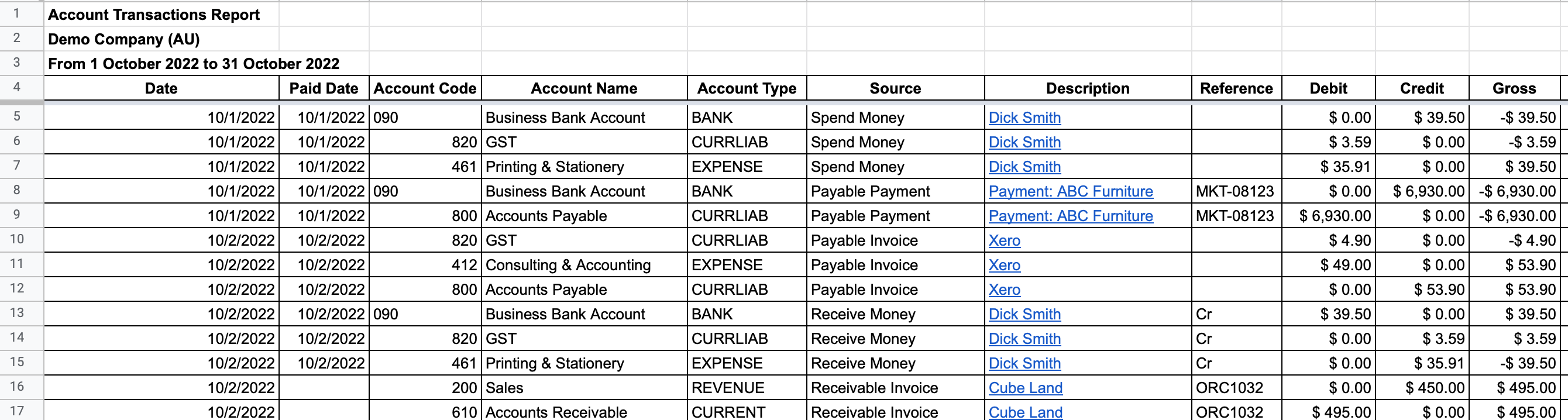
Retrieve HeadersShows column headers in your report or data extract.Example
Data with column headers in the first row
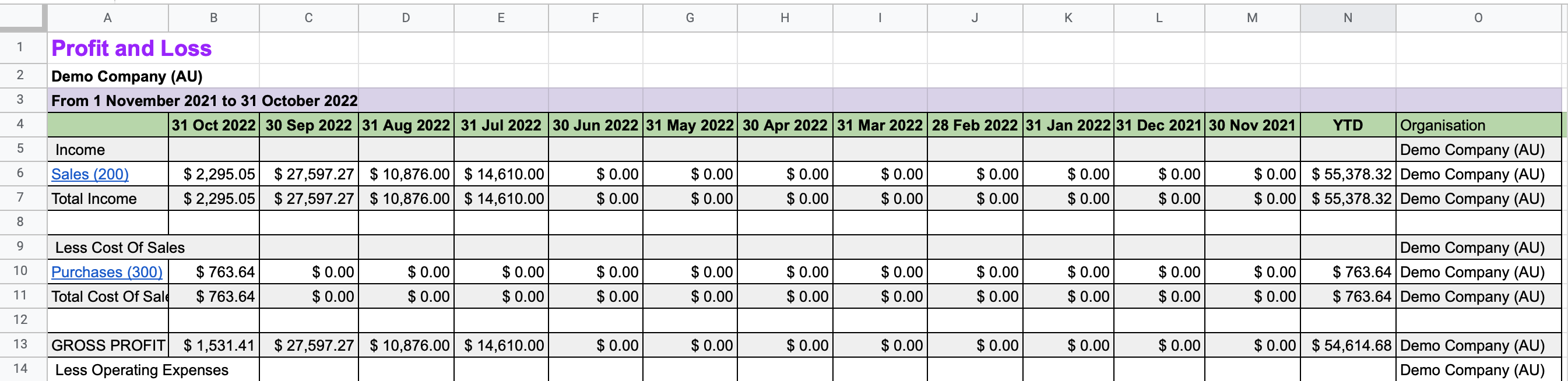
Add Organisation Name ColumnAdds the organization name in the last column.Example
Report with the organisation name in the last column
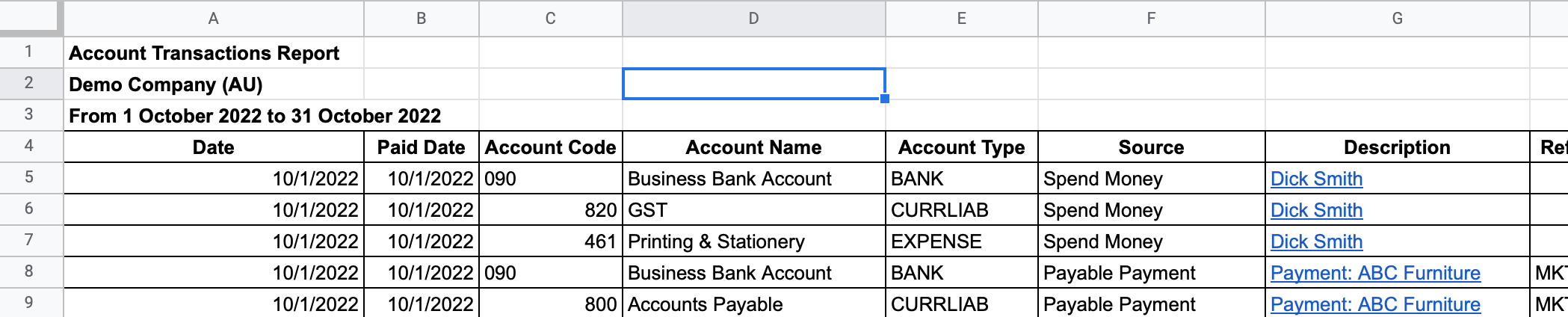
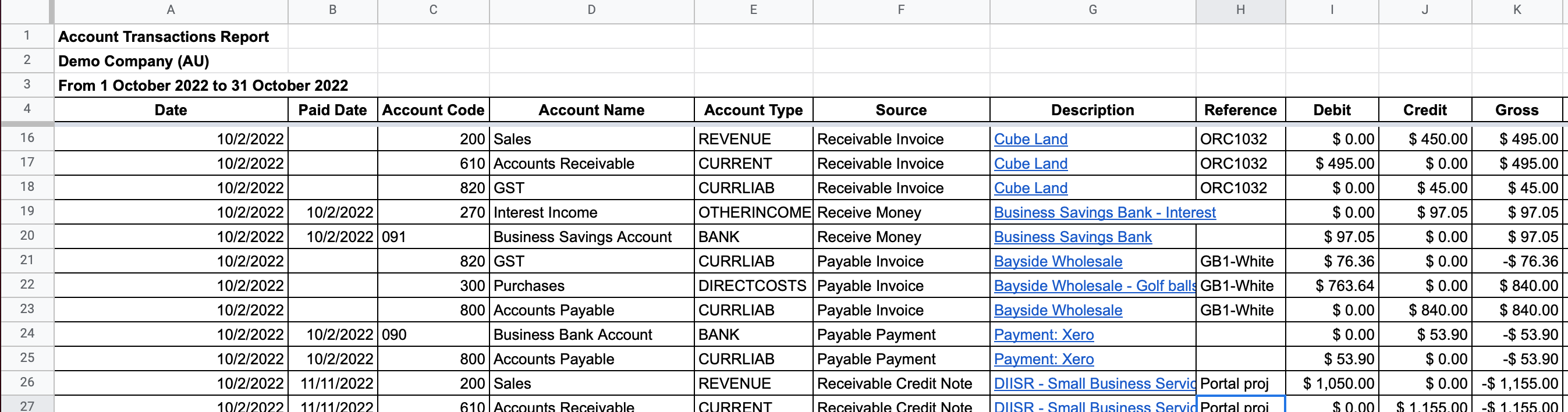
Show "Account Type" ColumnShows the account type in supported reports.Example
Report with an Account Type column
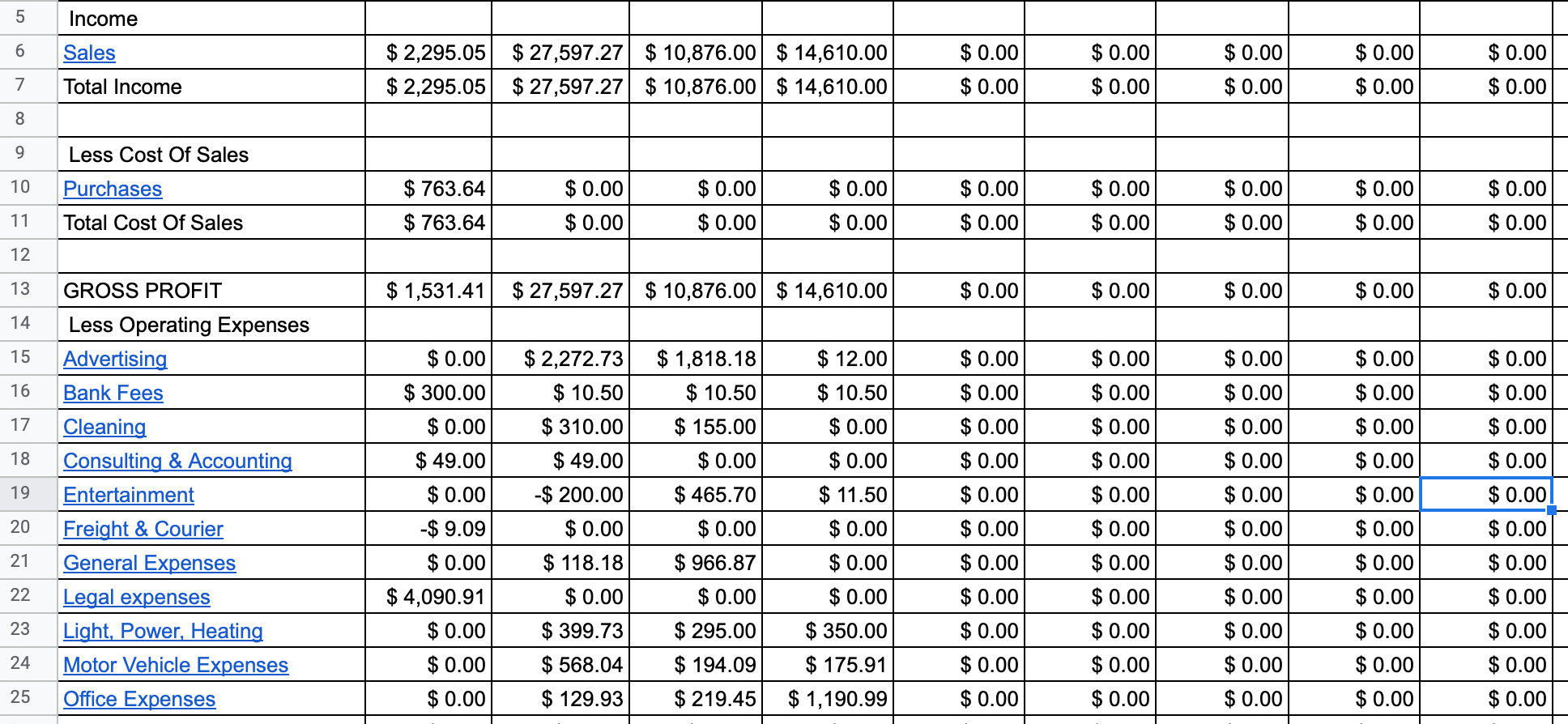
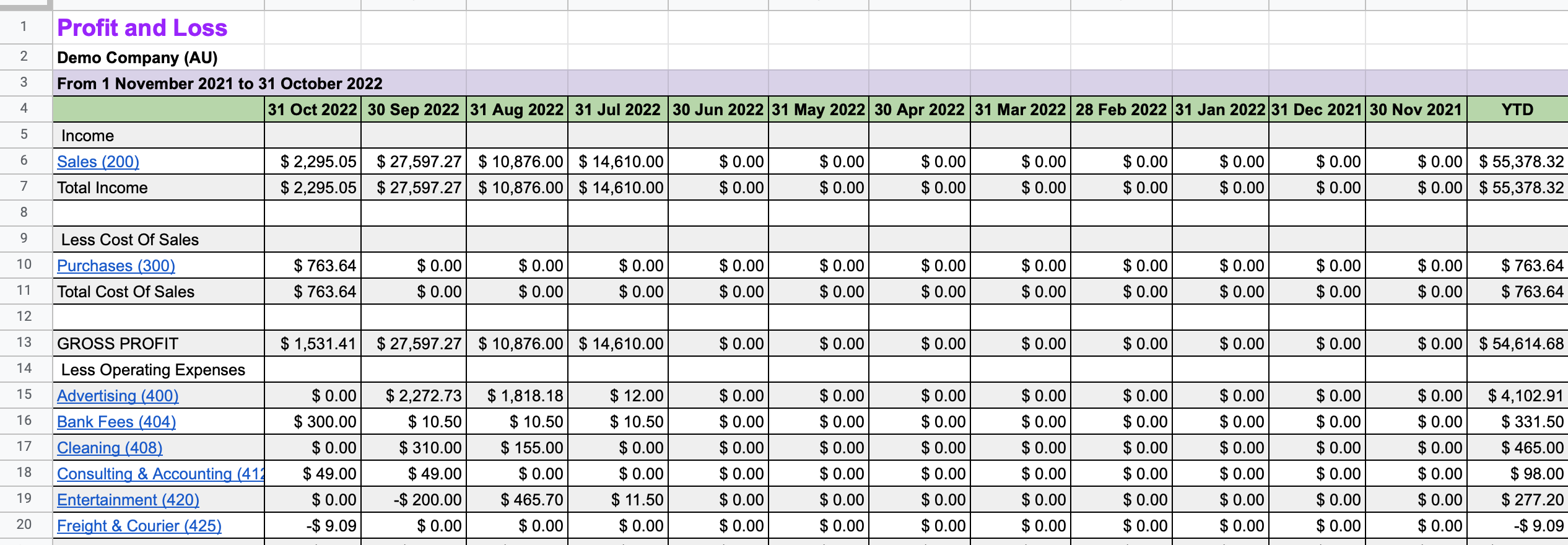
Display Only Account CodesShows account codes instead of full account labels.Example
Report showing only account codes
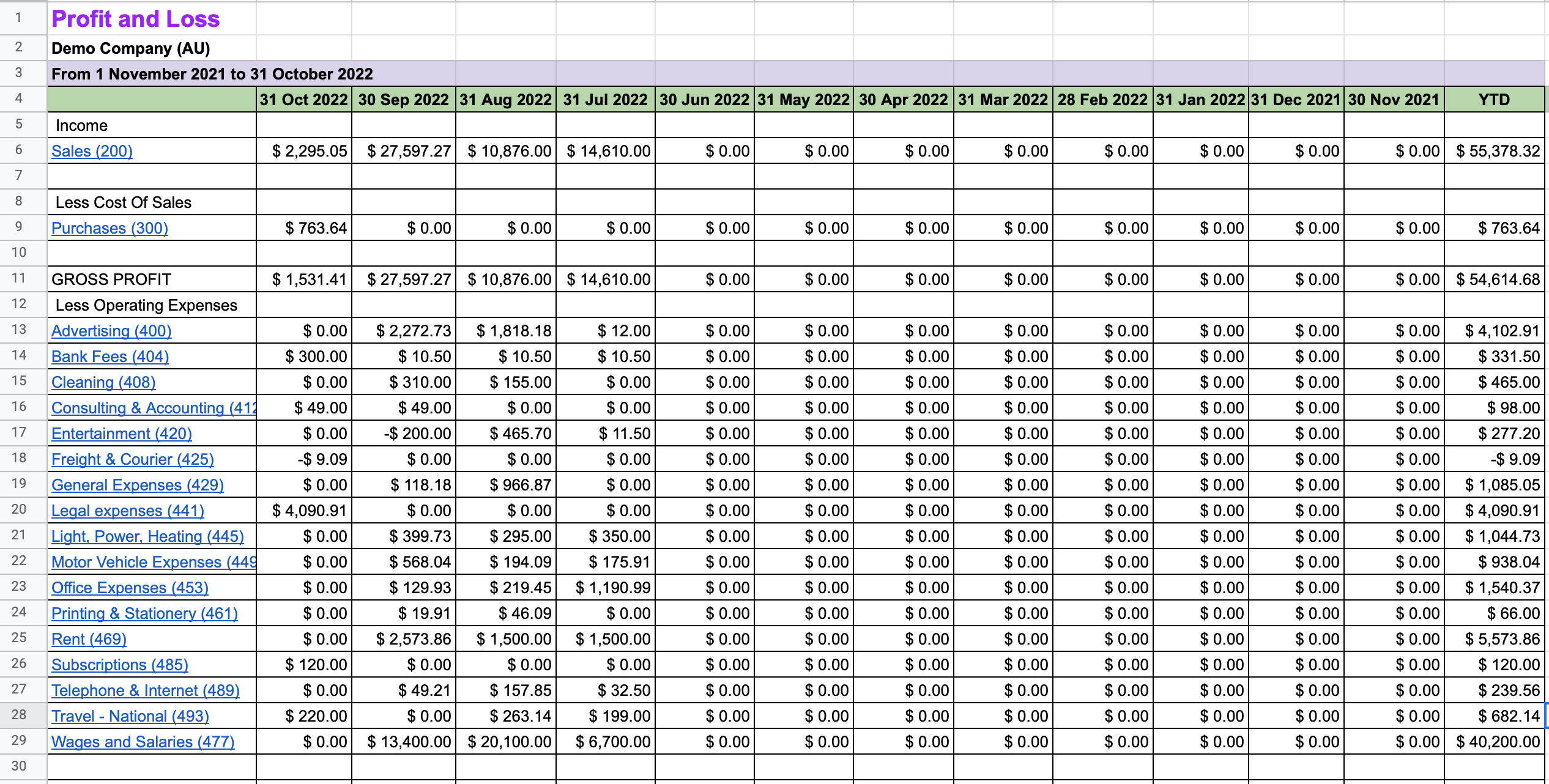
Display Only Account NamesShows account names instead of full account labels.Example
Report showing only account names

Rows and totals

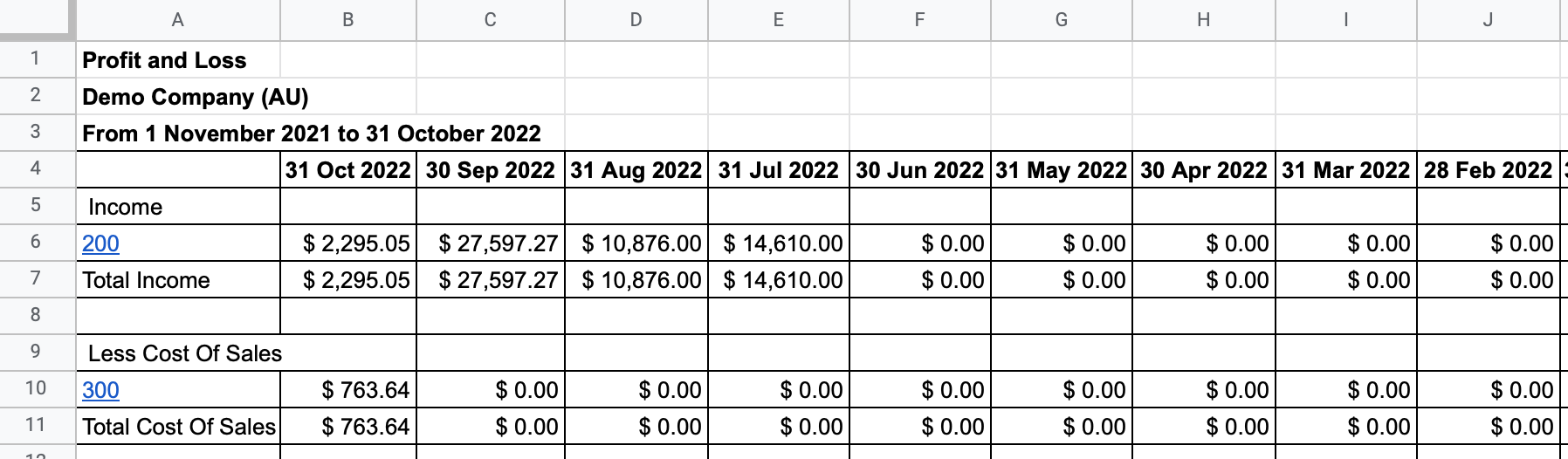
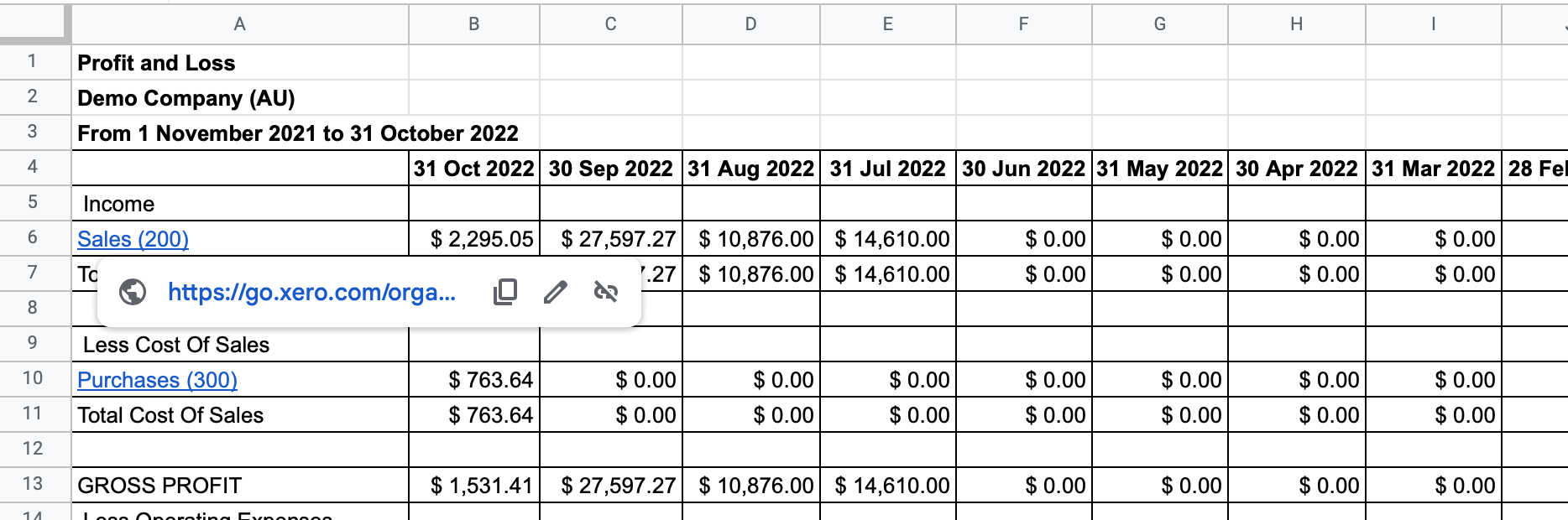
Remove Total/Summary RowsShows report details without totals or summary rows.Example
Report details without total or summary rows
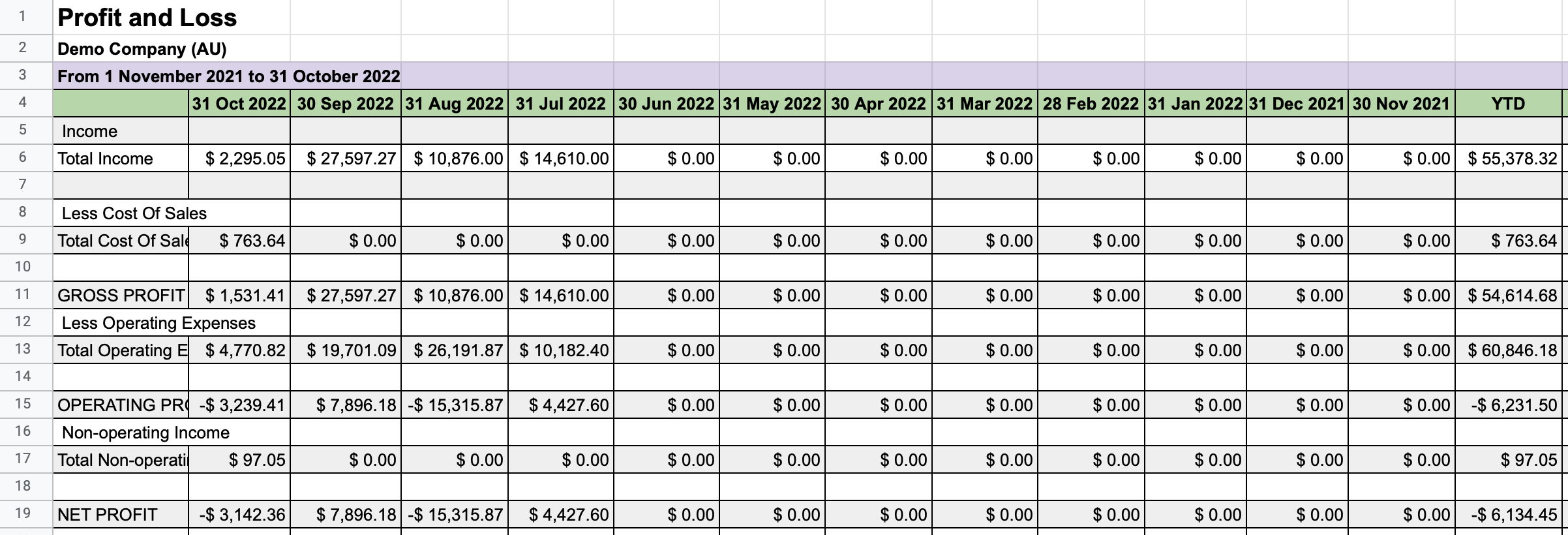
Display Only Report SummariesShows only the report totals and summary rows.Example
Report showing only summary rows
Remove Empty Dividing RowsRemoves the empty rows that divide report sections.Example
Report without empty dividing rows

Look and formatting

Keep Original FormattingKeeps your own formatting, such as fonts, cell sizes and colors.Example
Report keeping custom fonts and colors
Highlight Every Other RowShades alternate rows in a report or data extract.Example
Report with every other row highlighted
Create a Data Table Around Pulled DataWraps the pulled data in a data table. Clear it to get plain cells.Example
Pulled data inside a data table
Selected: the data sits in a table.
Pulled data without a table around it
Cleared: no table around the data.
Freeze Data Table HeaderFreezes the header row of your sheet.Example
Sheet with a frozen header row

Links to your accounting software

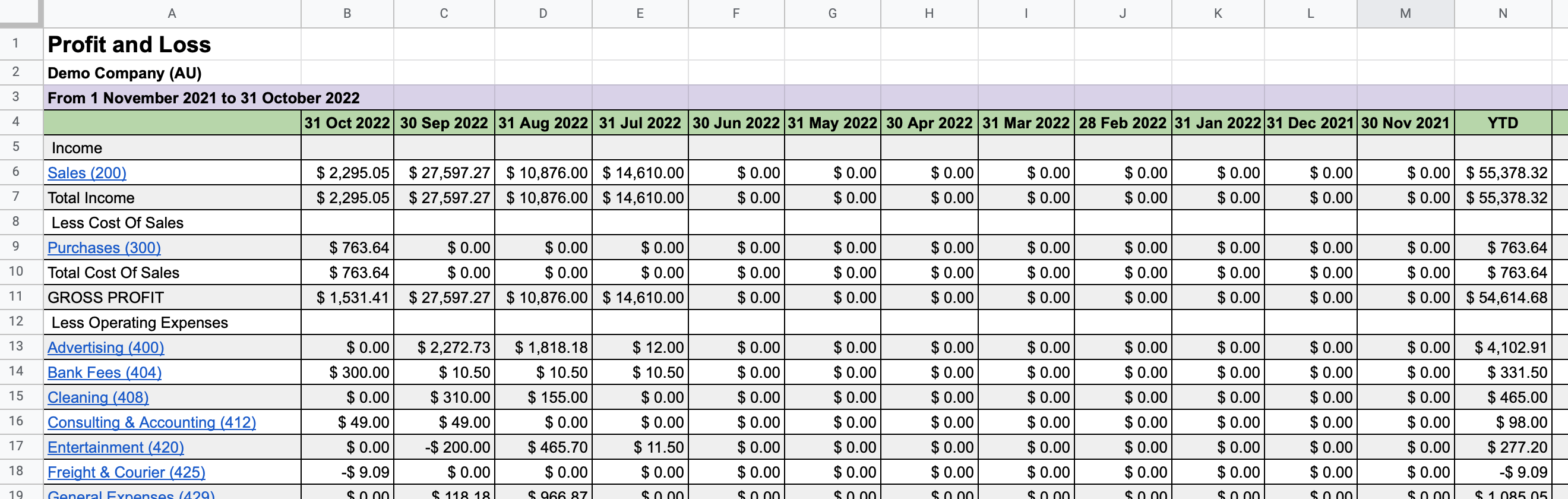
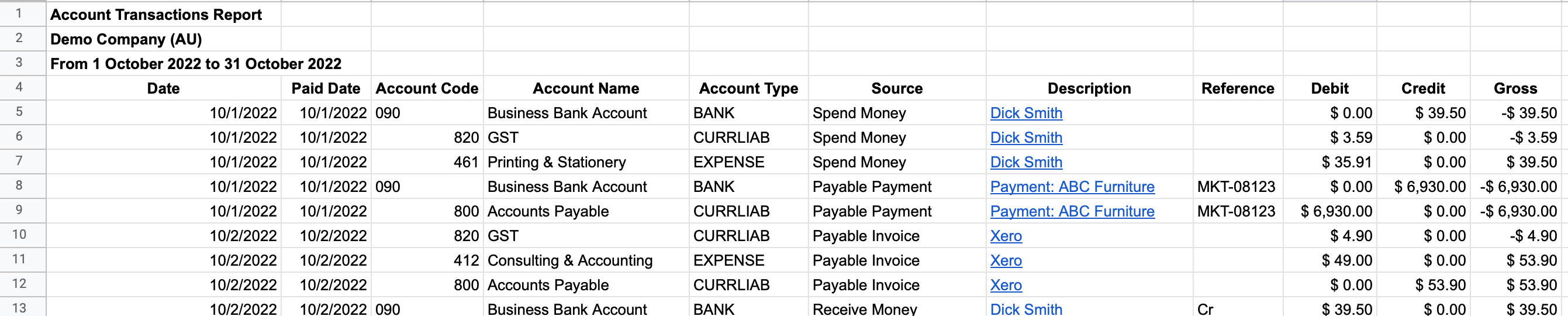
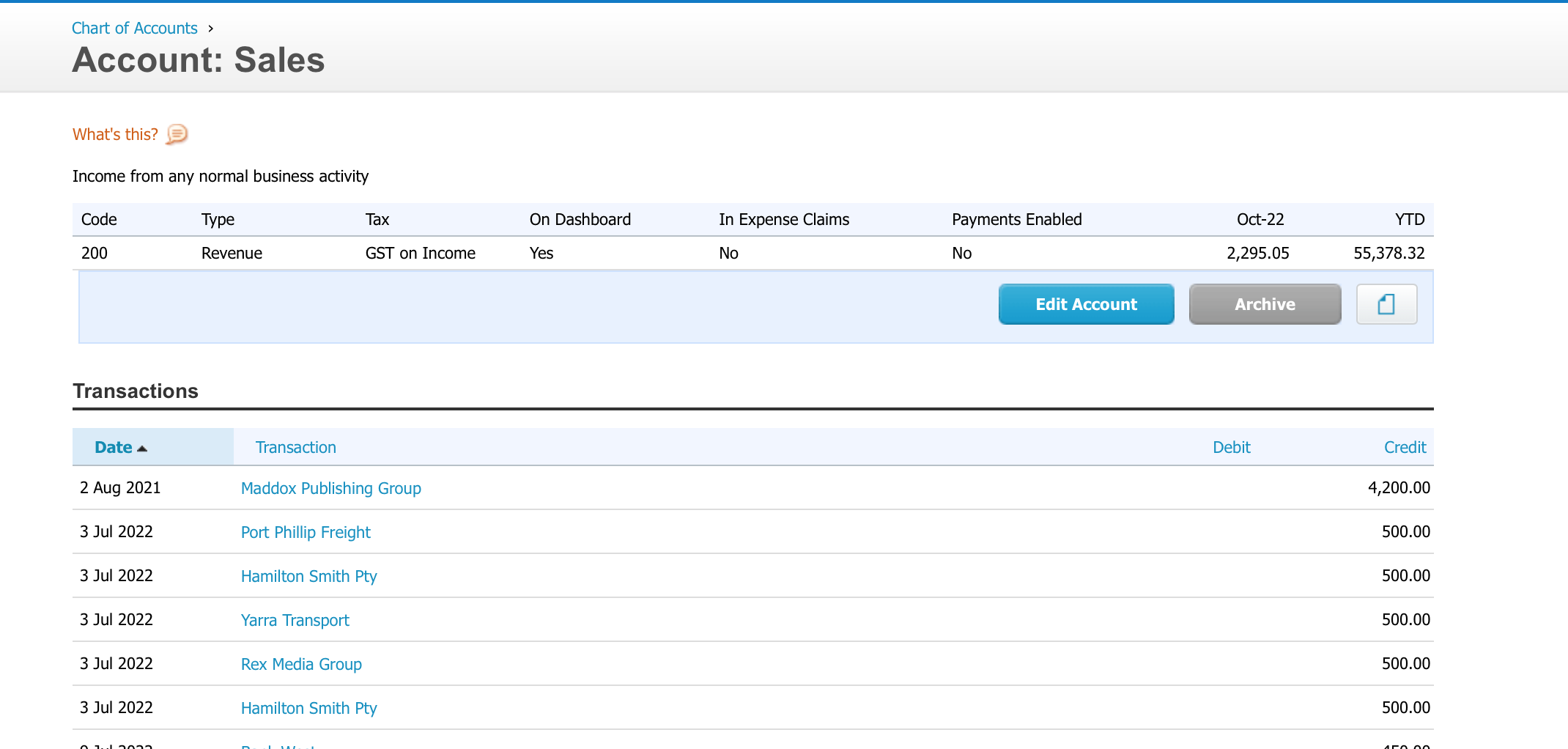
Create Deep Links to Xero or QuickBooksAdds links that open the matching page in Xero or QuickBooks. See Transaction DrilldownExample
Report with deep links to Xero
Links in the report.
Xero account page with its transactions, opened from a deep link
The Xero page that opens from a link.

Settings for data extracts

2 extra settings

Data extracts share many of the report settings above, such as Create a New Sheet, Retrieve Headers and Keep Original Formatting. They also have these:

Data extracts only

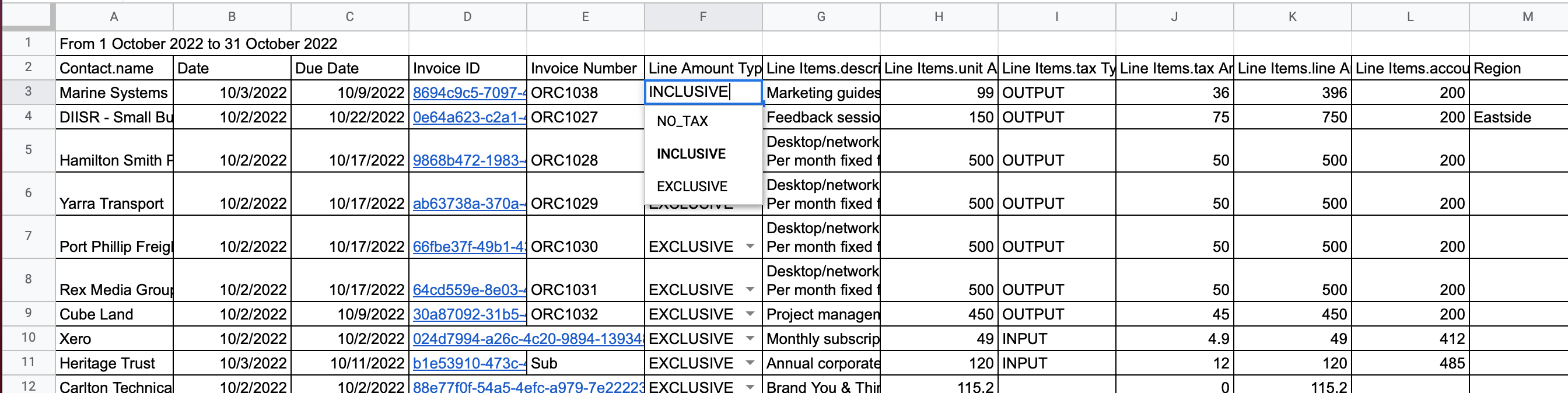
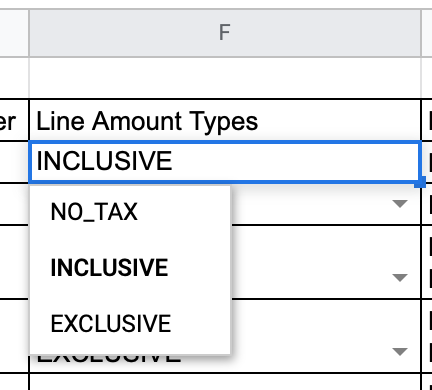
Enforce Pick List ValuesAllows only the defined pick list values, so users can't add wrong or duplicate values.Example
Data extract with pick list values enforced
Pick list dropdown with the defined values
The pick list in a cell.
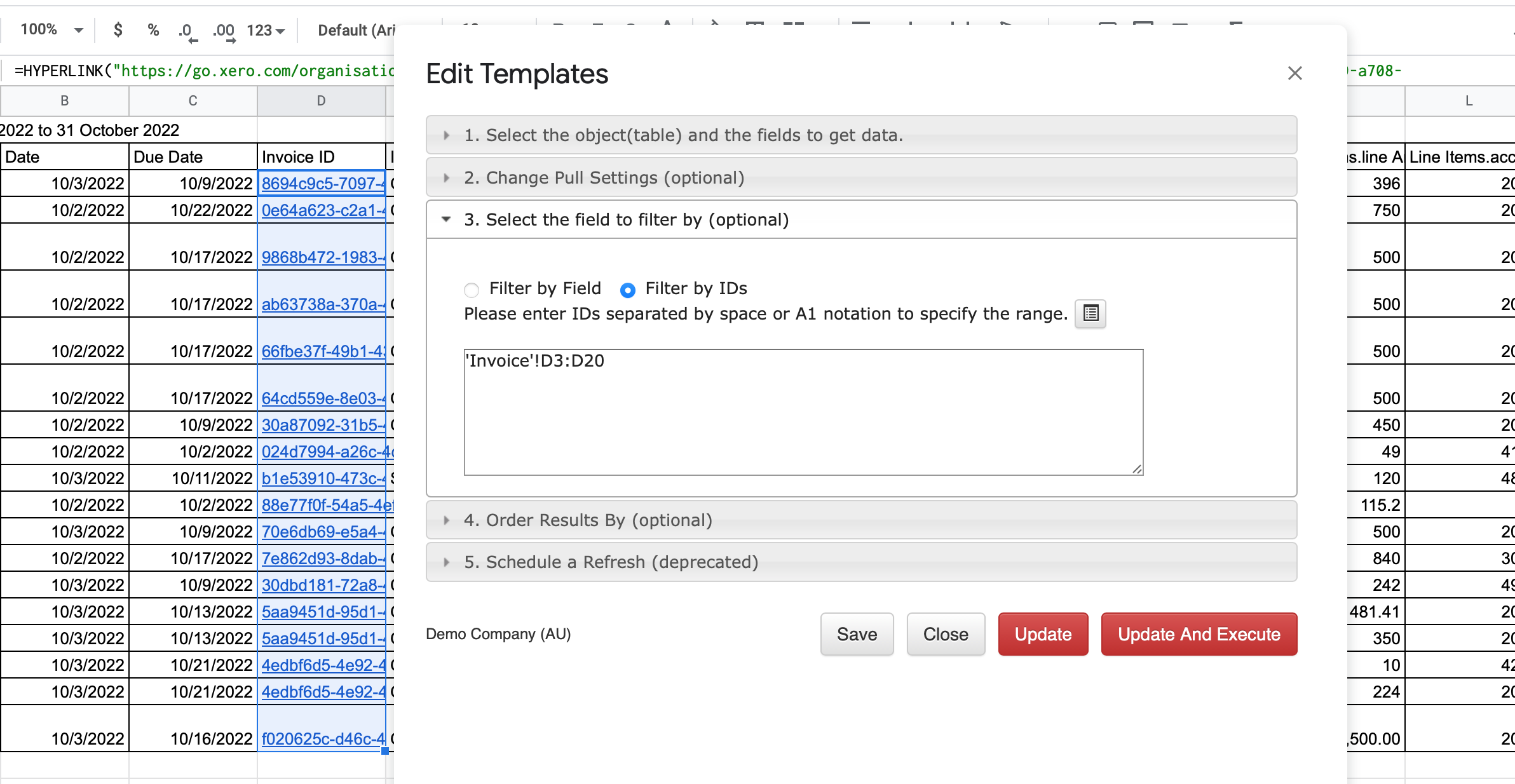
Ignore Empty Cells in "Filter by IDs"When you join two or more tables in an advanced query, removes empty cells from the results.Example
Query results with empty cells ignored in Filter by IDs
See all data extract settingsThe Change Pull Settings panel for a data extract.Show
Get Data from Xero, Create a Template window with Change Pull Settings for a data extract
Not sure which settings to use?

See all template guides, or ask our support team.

© Copyright 2026 G-Accon
crossmenuchevron-down