Your Complete Guide to G-Accon

G-Accon Help Center

Explore step-by-step guides, troubleshooting tips, and best practices to make the most of G-Accon. Whether you're setting up integrations, automating reports, or optimizing workflows, our help center has everything you need to succeed.
Wiki Menu

Xero Attachments

Export Xero attachments, such as invoice PDFs, into Google Sheets with a download link for each file. You pull them in two passes: first the invoice IDs, then the Attachments table filtered by those IDs, so each attachment lines up with its invoice.

Attachments are available on: InvoicesCredit NotesQuotesPurchase Orders
1
Pass 1

Pull the invoice IDs

  • Go to Extensions›G-Accon for Xero›Get Accounting Data/Reports›Get Data›Get Accounting Data
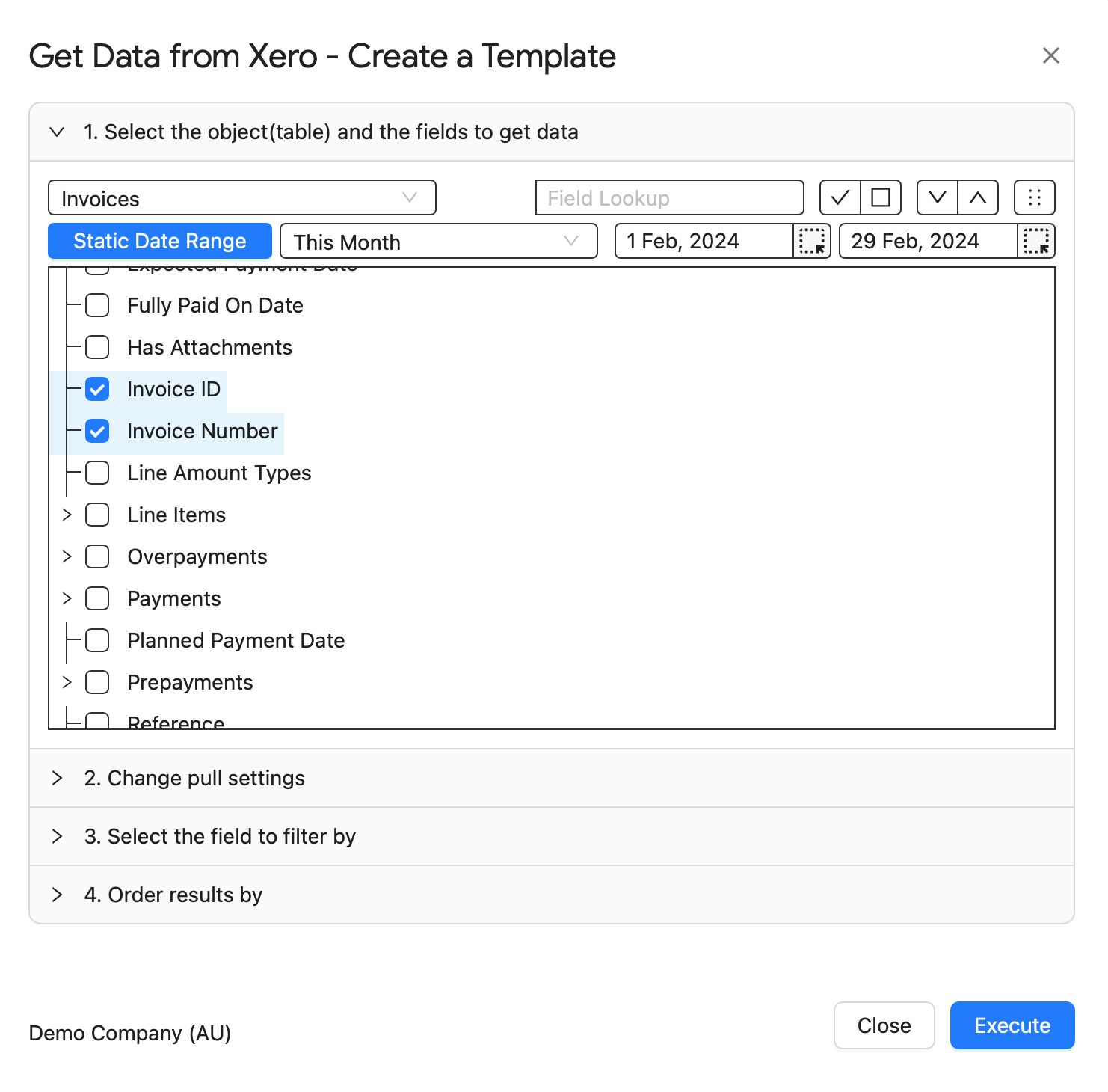
  • Select the Invoices table and tick Invoice ID, plus any other fields you need, such as Invoice Number. Invoice ID is the key for the join.
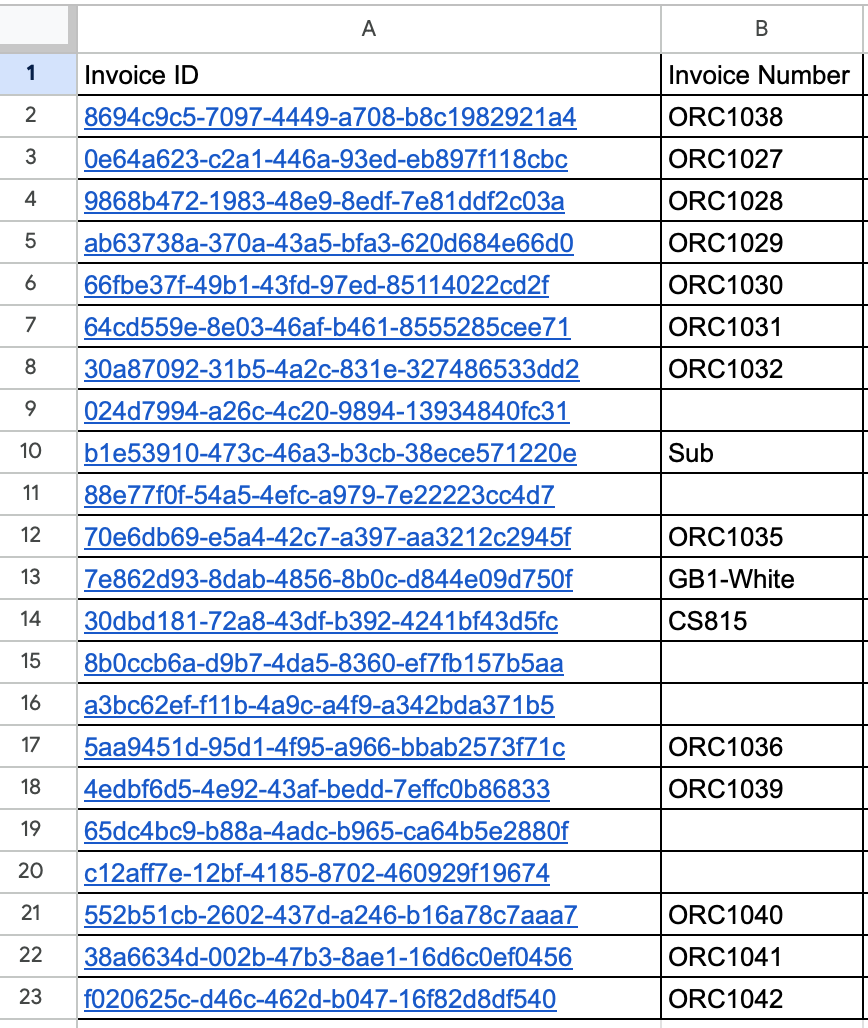
  • Click Execute. The IDs land in column A.
Invoices table with Invoice ID and Invoice Number selected
Invoice ID and Invoice Number selected.
Invoice IDs and invoice numbers in columns A and B
The result: IDs in column A.
2
Pass 2

Select the Attachments table

  • Open Extensions›G-Accon for Xero›Get Accounting Data/Reports›Get Data›Get Accounting Data again and select Attachments.
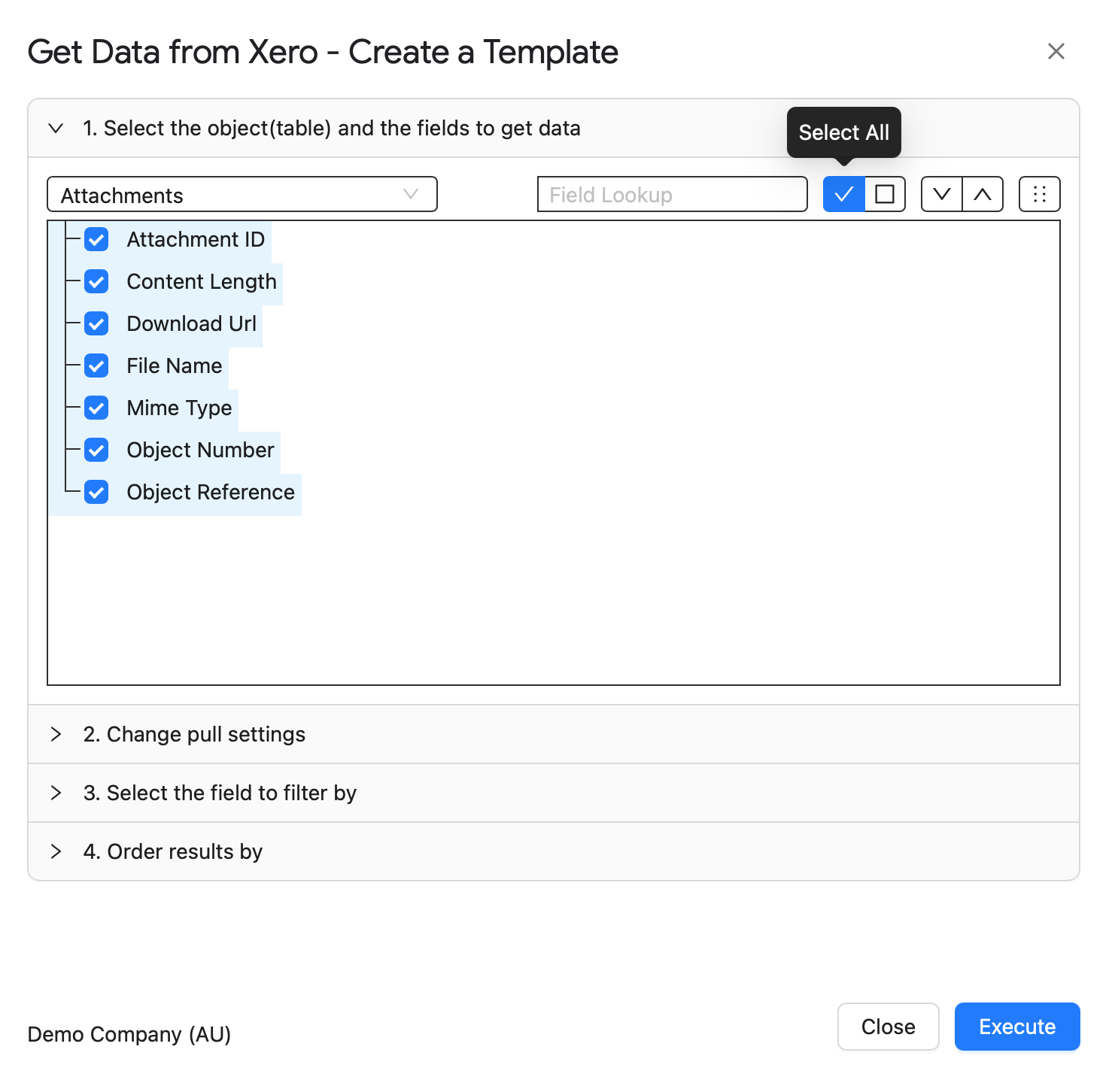
  • Click Select All or tick only the fields you need. Include Attachment ID. Use the expand and collapse buttons to see sub-fields.
Attachments table with all fields selected using Select All
All Attachments fields selected.
Attachment fieldsAttachment ID, Content Length, Download Url, File Name, Mime Type, Object Number and Object Reference.
3
3. Select the field to filter by

Filter by the invoice IDs

  • Open 3. Select the field to filter by and choose the Filter by IDs tab.
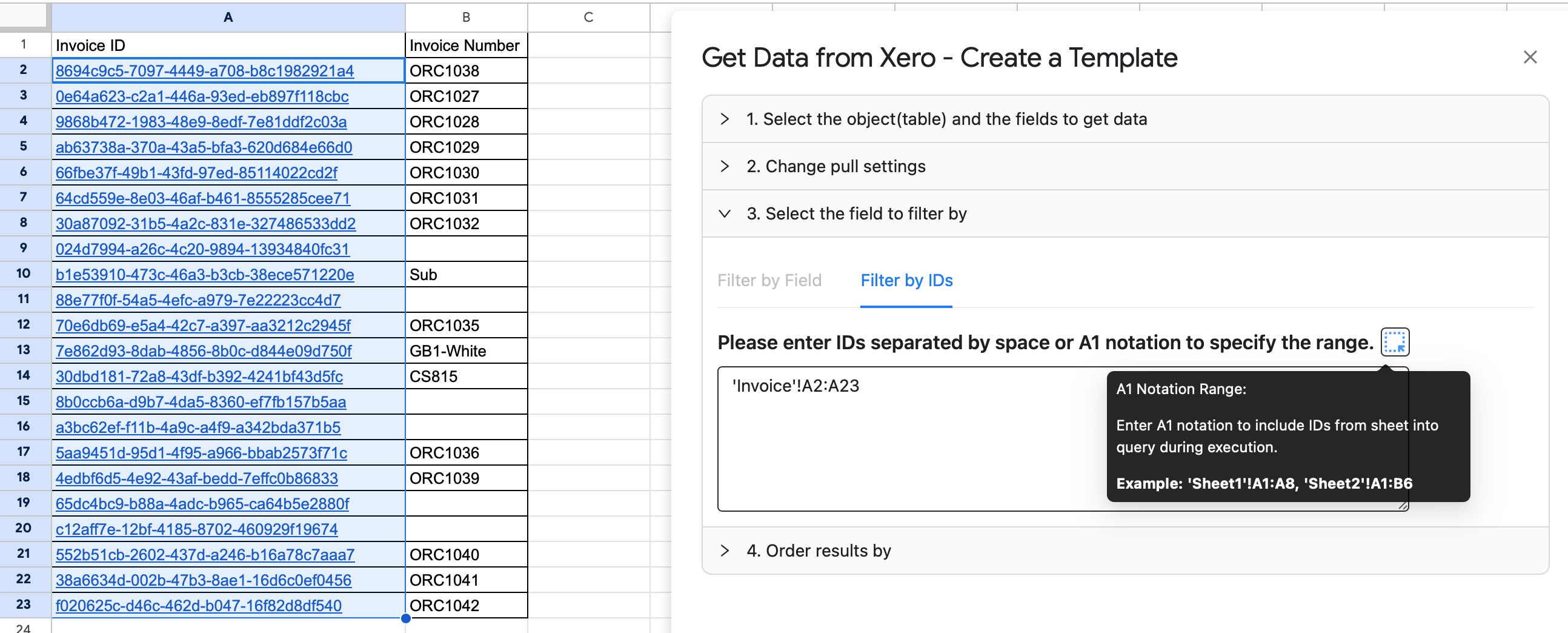
  • Highlight the invoice IDs in your sheet and click the reference icon to insert the range, for example 'Invoice'!A2:A23. You can also type IDs separated by spaces.
Filter by IDs tab with the range Invoice A2 to A23 entered
The Filter by IDs tab with the invoice ID range.
4
2. Change pull settings

Start the attachments at C1

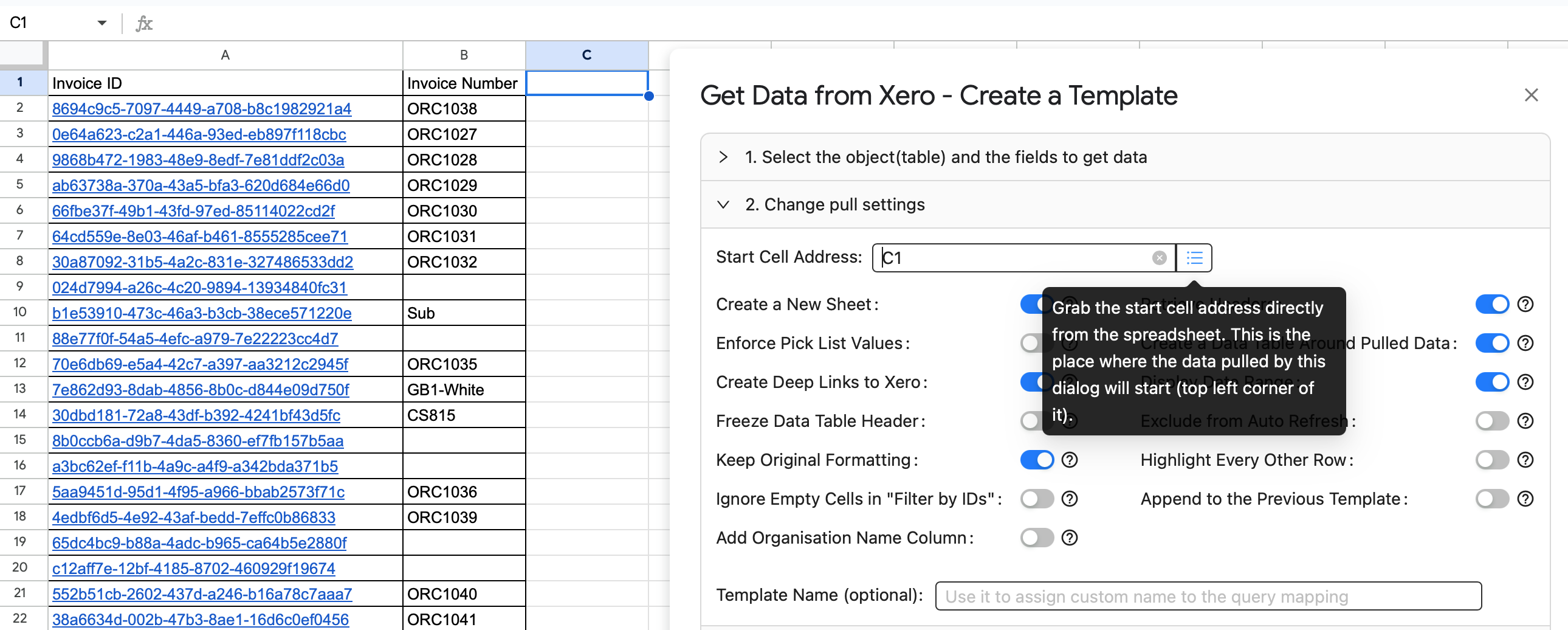
So the attachments sit next to the invoices, set Start Cell Address to C1, the first empty column.

Change pull settings with Start Cell Address set to C1
Start Cell Address set to C1.
Tip: in the same section, turn on Ignore Empty Cells in "Filter by IDs" to drop empty cells from the joined result. See all pull settings
5
Run

Click Execute and open the files

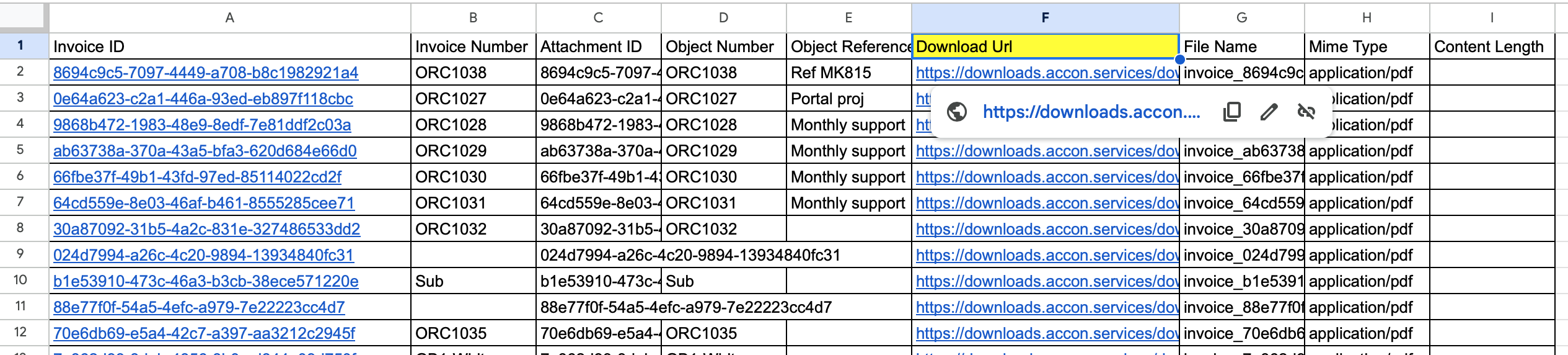
The two tables are joined by ID: each invoice row now has its attachment details. Click a Download Url to open the file.

Invoices joined with their attachments, including a Download Url column
Invoices joined with their attachments.
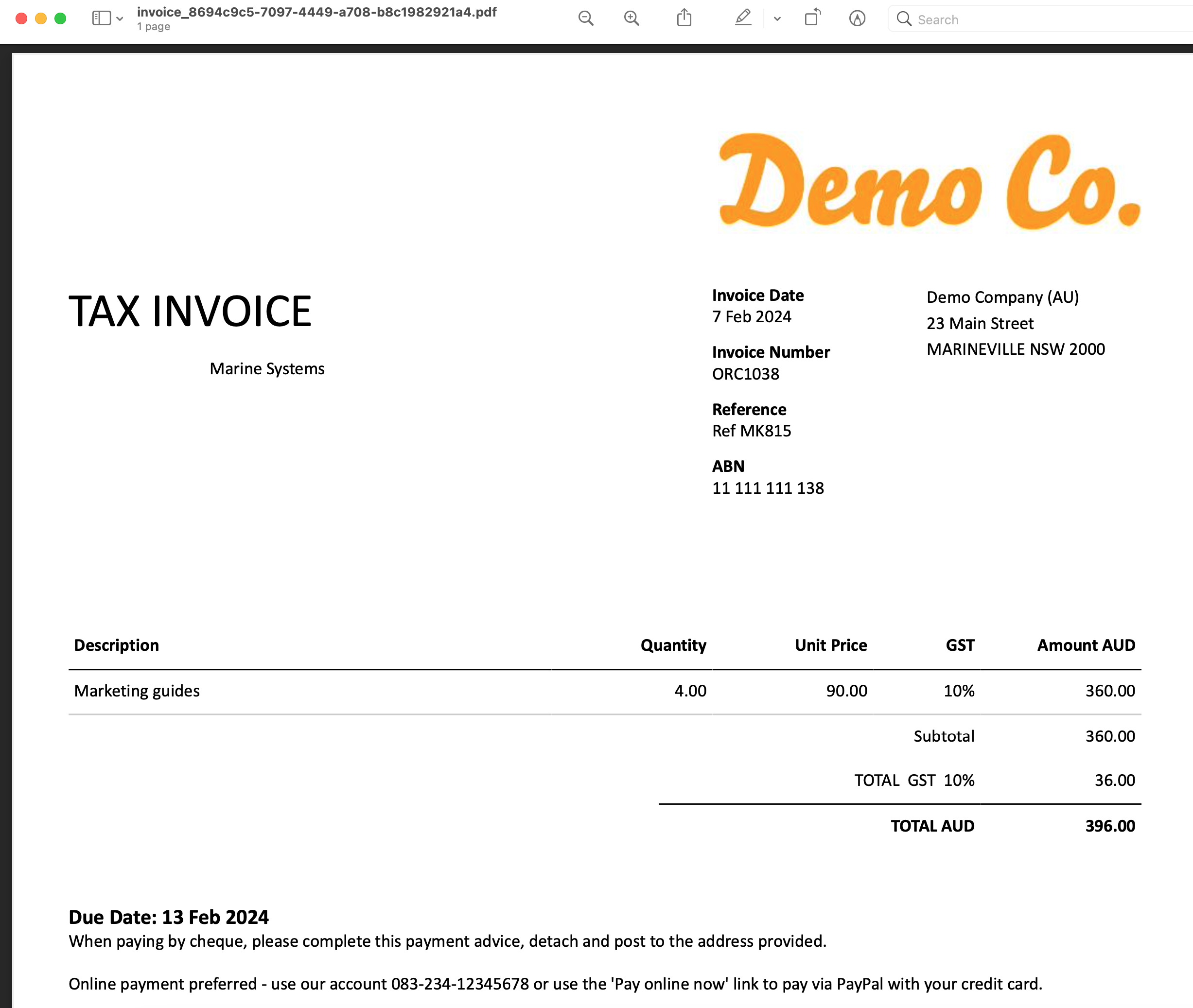
Invoice PDF opened from its download link
An invoice PDF opened from its link.
Need help joining tables?

See how to export any Xero table, or ask our support team.

© Copyright 2026 G-Accon
crossmenuchevron-down