Explore step-by-step guides, troubleshooting tips, and best practices to make the most of G-Accon. Whether you're setting up integrations, automating reports, or optimizing workflows, our help center has everything you need to succeed.
Wiki Menu
Balance Sheet by Classes
Export Balance Sheet By Classes Report into Google Sheets
Choose "Balance Sheet By Classes" report from dropdown box.
Export Balance Sheet By Classes into Google Sheets
How to design a template for the report?
Select the Balance Sheet By Classes option from the drop-down menu in Custom Accounting Reports.
SELECT PARAMETERS
There are required and optional attributes for the Balance Sheet By Classes report.
Dynamic Date Range: The report data will be calculated based on pre-populated values like This Month, This Quarter, This Year, Last Month, etc.
Static Date Range: Define specific start and end dates.
Custom Date Range: Utilize cell references in your Google Sheet to set custom dates.
REQUIRED ATTRIBUTES
Accounting Methods (Accrual/Cash) — select the accounting method to use for the report.
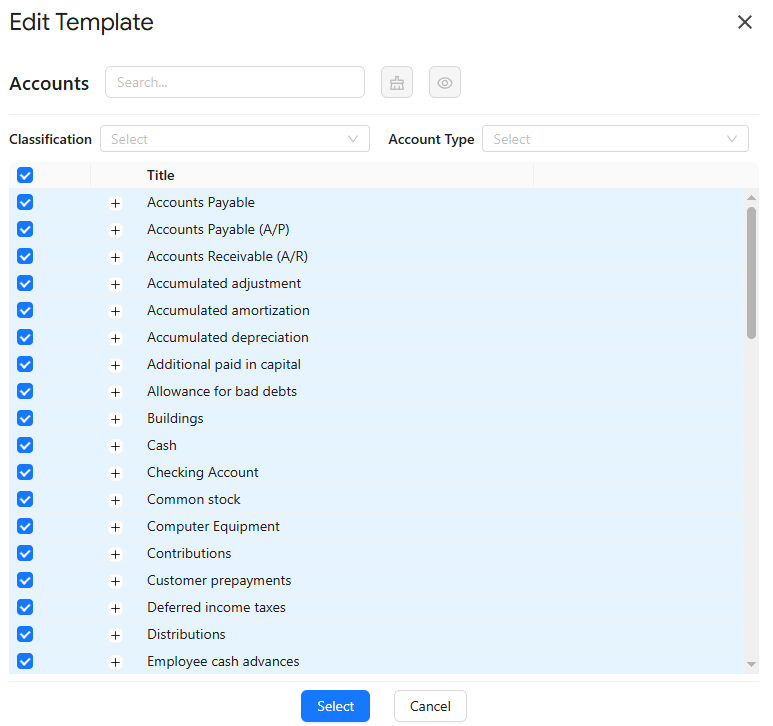
Accounts — specify the accounts to include in the report.
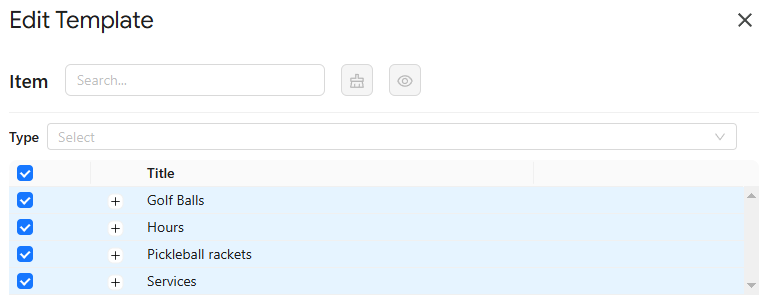
Items — specify the items to include in the report.
CHANGE PULL SETTINGS / PREVIEW
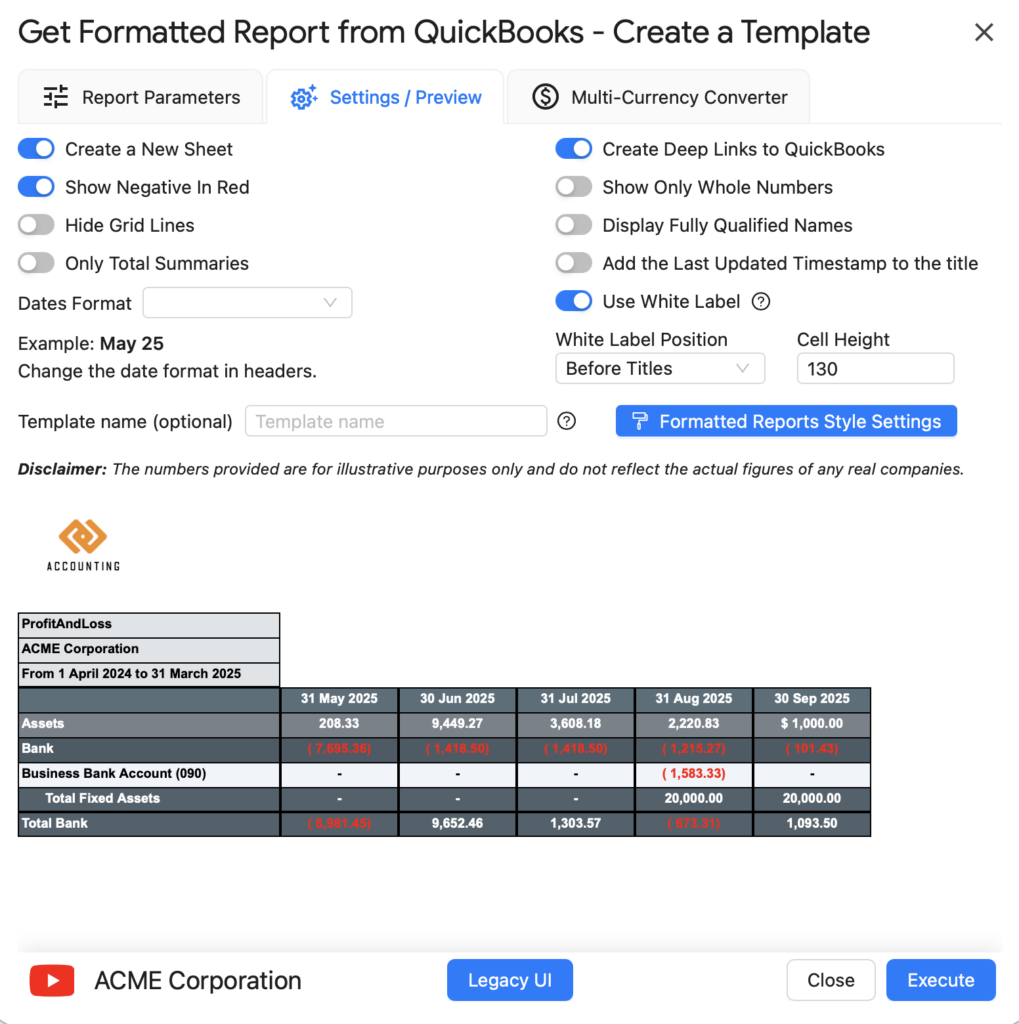
Customize report behavior and control how data is presented in your Google Sheet. All settings are optional and can be combined to suit your reporting workflow:
Create a New Google Sheet — generate the report in a new tab or worksheet
Display Report Title — include and display the report title within the spreadsheet
Retrieve Headers — include and display column titles for your data
Display Only Account Codes — display only account codes instead of full account
Freeze Data Table Header — lock the header row or column to keep it visible while scrolling through the data
Create a Data Table Around Pulled Data — organize your data into a structured table format
Keep Original Formatting — preserve the original formatting of the data
Remove Empty Dividing Rows — eliminate any empty rows that separate your data
Exclude from Auto Refresh (Discontinuing) — prevent the spreadsheet from auto-refreshing, though note that this functionality may be outdated
Hide Grid Lines — conceal grid lines for a cleaner look
Show Negatives in Red — display negative values in red
Show Only Whole Numbers — display only whole numbers in the report
Only Data Rows — filter and display only the rows containing actual data
Only Report Summaries — show only the summary or aggregated data rows
Create Deep Links to QuickBooks — generate links for accessing specific items in QuickBooks
Highlight Every Other Row — apply a formatting style to alternate rows to improve readability
Add Last Updated Timestamp to Title — include a "Last Updated" field with the most recent refresh date and time
Display Fully Qualified Names — present full names or labels for the data
Append to the Previous Template — add the new data or changes to an existing template
Add Company Name Column — introduce a column to include the company name
Use White Label — add your company logo and customize branding
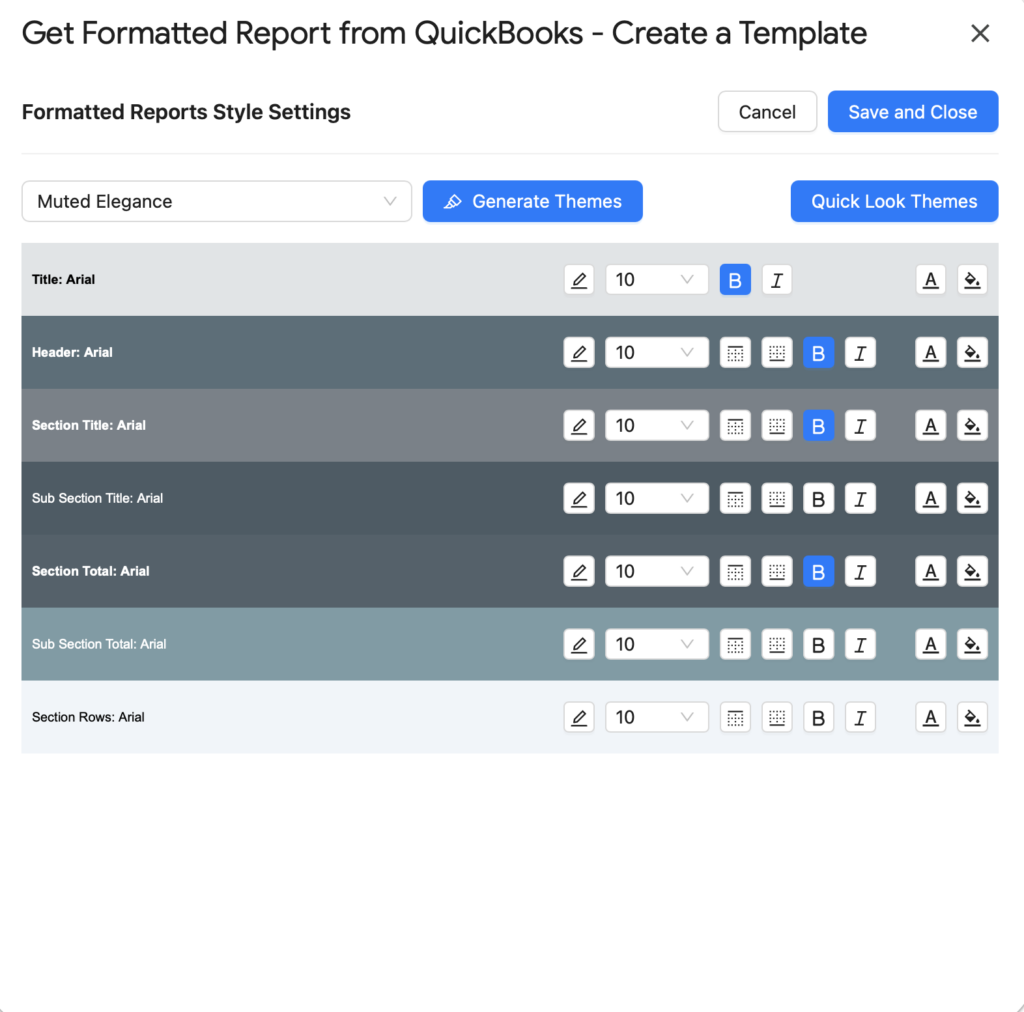
Formatted Report Style Settings allow you to tailor the visual presentation of your report, ensuring it aligns with your company's branding and reporting standards.
MULTI-CURRENCY CONVERTER
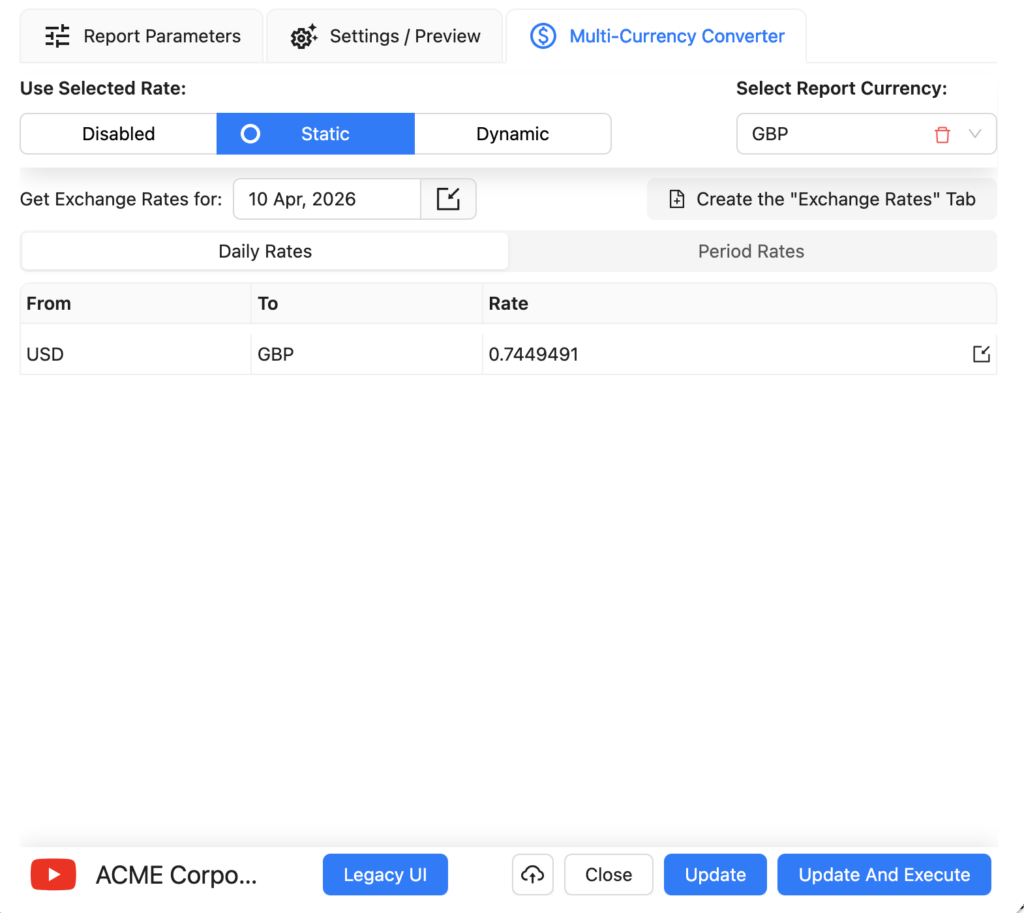
If you need to generate your Balance Sheet by Product and Services report in a currency other than your QuickBooks base currency, the Multi-Currency Converter tab lets you select a target currency and choose how exchange rates are applied.
Three options are available:
Use Latest Rates
Select your target currency (e.g. EUR) and choose Use Latest Rates. Each time the report is refreshed, G-Accon will automatically fetch the most current exchange rate from its provider and apply it to all values in the report. No manual rate input is required.
Use Custom Rates
Choose Use Custom Rates to manually specify an exchange rate for a particular date. You can either enter the rate directly in the converter panel, or create a dedicated tab in your Google Sheet containing custom rates — useful when you need to lock in a specific rate for audit or compliance purposes.
Use Custom Rates for Periods
For reports spanning multiple periods, Use Custom Rates for Periods lets you assign a different exchange rate to each period in the report. This is essential for accurate multi-period comparisons where exchange rates fluctuated significantly. Rates can be entered in the converter panel or managed in a dedicated Google Sheet tab.
Once your currency settings are configured, click Execute to generate the report. The converted figures will appear directly in your Google Sheet in the selected currency.
How to schedule automatic data refresh?
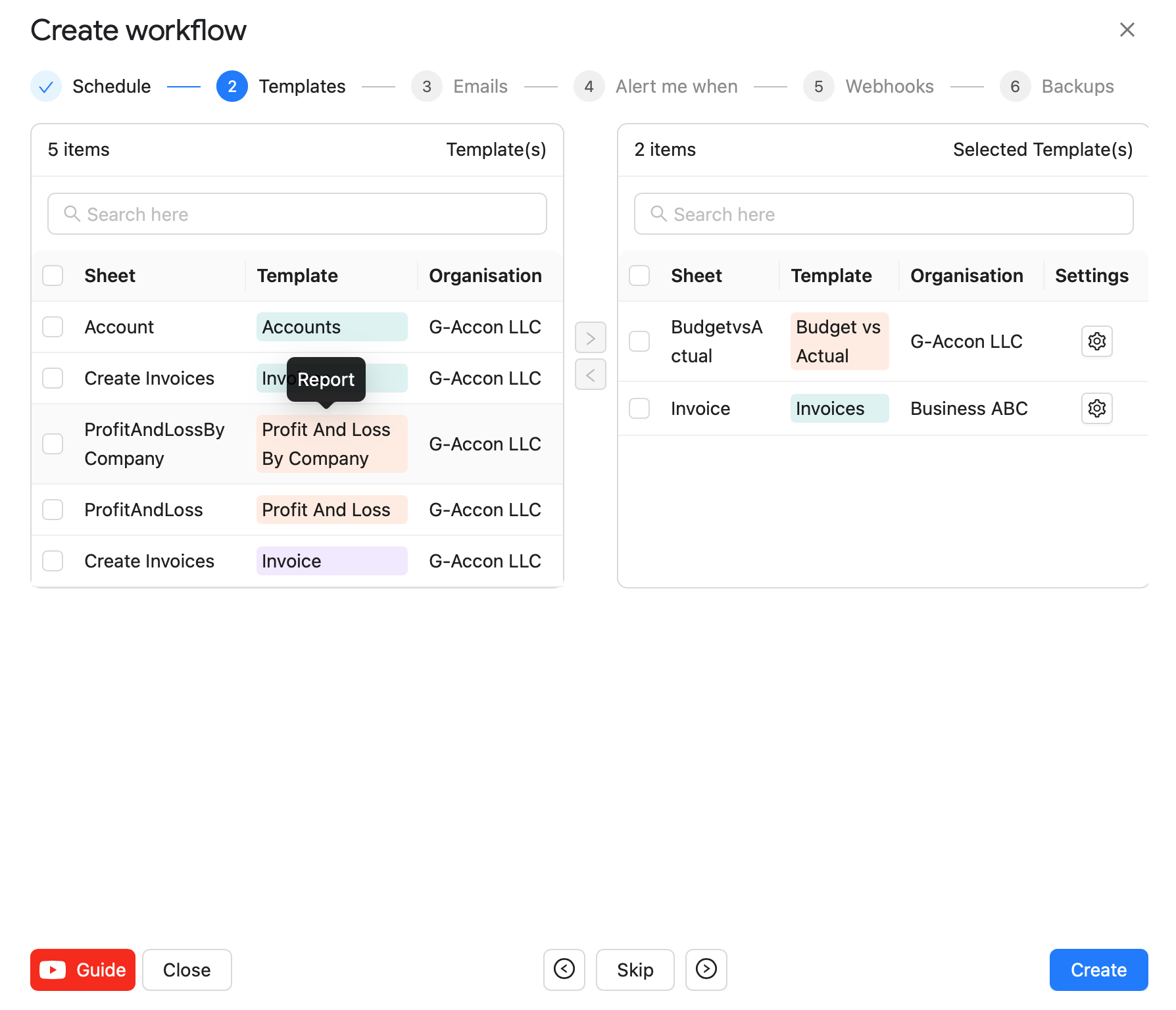
G-Accon's Automation feature lets you schedule your Balance Sheet by Product and Services report to refresh automatically. To set up an automated refresh:
Go to Extensions → G-Accon for QuickBooks → Automation → Create Workflow.
Add the Balance Sheet by Product and Services template to the workflow and set your preferred refresh schedule (e.g. daily, weekly, or monthly).
Optionally configure email notifications to be sent automatically when the refresh completes.
Multiple templates can be included in a single workflow, each with its own schedule.
For more details, refer to the "Create Workflow" documentation here.
How to modify your report and update your template?
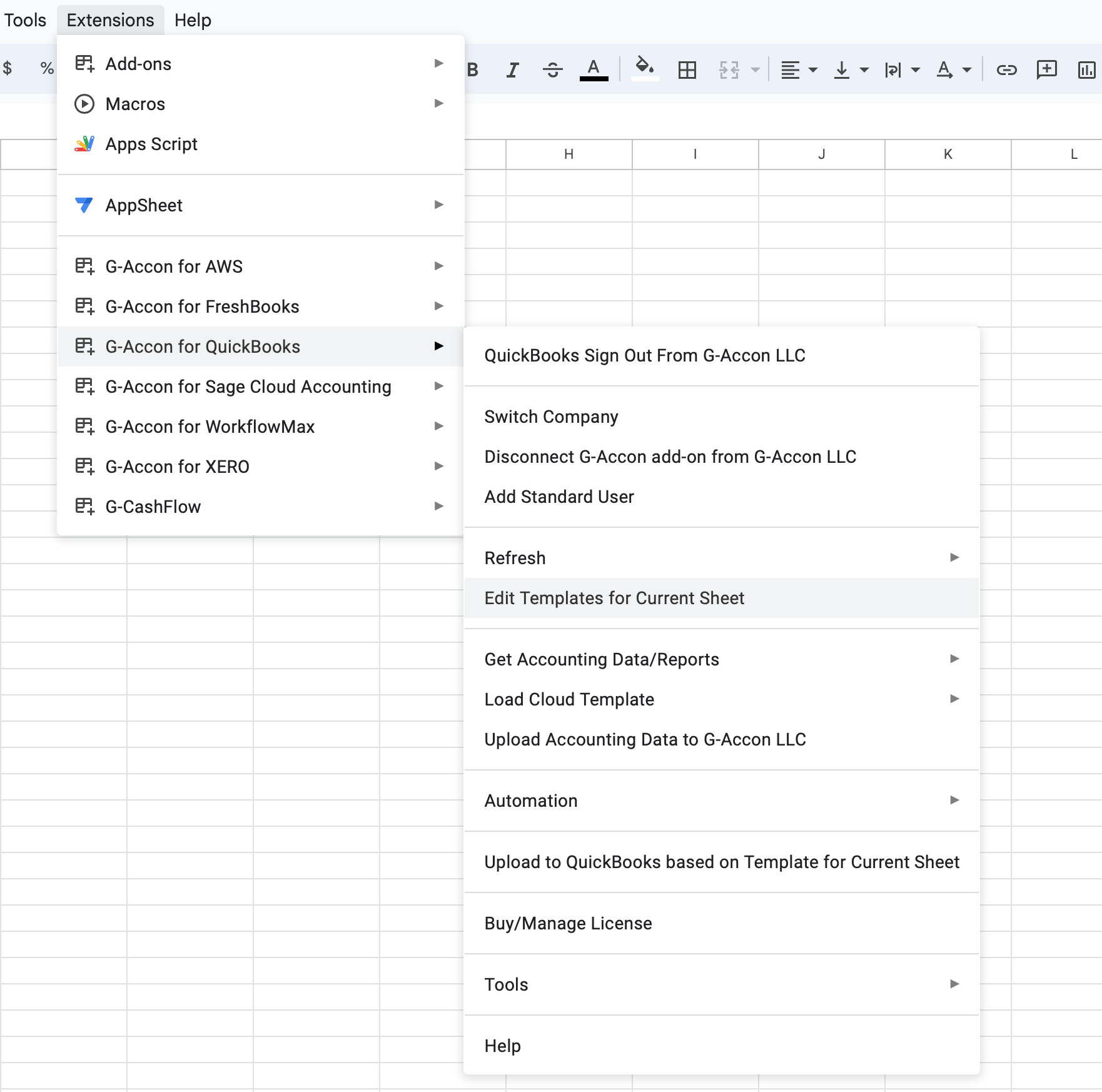
During the refresh process, if you need to modify your report, follow these steps:
Click on "Extensions" in the menu.
Choose "G-Accon for QuickBooks"
Select "Edit Templates for Current Sheet"
To Refresh and Modify a template there is no need to be signed in into the organization.
Select the template, make the necessary changes to it and Update the template or Update and Execute the new query.
To provide the best experiences, we use technologies like cookies to store and/or access device information. Consenting to these technologies will allow us to process data such as browsing behavior or unique IDs on this site. Not consenting or withdrawing consent, may adversely affect certain features and functions.
Functional
Always active
The technical storage or access is strictly necessary for the legitimate purpose of enabling the use of a specific service explicitly requested by the subscriber or user, or for the sole purpose of carrying out the transmission of a communication over an electronic communications network.
Preferences
The technical storage or access is necessary for the legitimate purpose of storing preferences that are not requested by the subscriber or user.
Statistics
The technical storage or access that is used exclusively for statistical purposes.The technical storage or access that is used exclusively for anonymous statistical purposes. Without a subpoena, voluntary compliance on the part of your Internet Service Provider, or additional records from a third party, information stored or retrieved for this purpose alone cannot usually be used to identify you.
Marketing
The technical storage or access is required to create user profiles to send advertising, or to track the user on a website or across several websites for similar marketing purposes.